> For AI agents: the complete documentation index is available at /next/llms.txt, the full documentation bundle is available at /next/llms-full.txt.
[Tutorial: Product Gallery](/next/learn/gallery)
Tutorial: Product Detail
# Tutorial: Product Detail
In this tutorial, we'll implement a swiper component to teach you how to write high-performance interactive code. You'll learn:
- [Direct Node Manipulation](#direct-node-manipulation): You'll learn how to listen to events and update node styles
- [Use Main Thread Script to Reduce Latency](#use-main-thread-script-to-reduce-latency): You'll learn how to optimize interaction performance with main thread script
- [Communication Between Main Thread and Background Thread](#communication-between-main-thread-and-background-thread): You'll learn how to enable communication between main thread and background thread functions
- [Values Across Main Thread and Background Thread Script](#values-across-main-thread-and-background-thread-script): You'll learn about data flow when using main thread and background thread script together
## What Are We Building?
Let's have a look at what we're building! To try it out, download and install the [Lynx Explorer App](/next/guide/start/quick-start.md#download-lynx-explorer,ios-simulator-platform=macos-arm64,explorer-platform=ios-simulator), then scan the QR code below.
The swiper responds to touch, so the web preview below demonstrates it for you: the swipes are simulated, and the circle marks where a finger would be. Touch or click the preview at any time and it hands control straight back to you.
**This is an example below: swiper**
**Entry:** `src/Swiper, src/utils`
**Bundle:** `dist/Swiper.lynx.bundle` | Web: `dist/Swiper.web.bundle`
```tsx
import { root } from "@lynx-js/react";
import "./styles.scss";
import { Page } from "../Components/Page";
import { picsArr } from "../utils/pics";
import { Swiper } from "./Swiper";
const easing = (x: number) => {
"main thread";
return x < 0.5 ? 2 * x * x : 1 - Math.pow(-2 * x + 2, 2) / 2;
};
export default function App() {
return (
);
}
root.render();
```
v0.6.1
## Setup for the tutorial
Check out our detailed [quick start](/next/guide/start/quick-start.md) doc that will guide you through creating a new Lynx project.
You may notice that the project is using TypeScript. Although Lynx and ReactLynx support both TypeScript and plain JavaScript, we recommend TypeScript for a better development experience, provided by static type checking and better editor IntelliSense.
You'll see lots of beautiful images throughout this guide. We've put together a package of sample images you can download [here](https://lf-lynx.tiktok-cdns.com/obj/lynx-artifacts-oss-sg/lynx-website/download/product_detail_assets.zip) to use in your projects.
## Direct Node Manipulation
Here's a product detail page example that includes a swiper and some product details. The `` accepts images and displays them in a row. Currently, it can't scroll - let's make it interactive.
The demonstration swipes this one too, and nothing moves — that is the point. Nothing here listens for the gesture yet.
**This is an example below: swiper**
**Entry:** `src/SwiperEmpty, src/utils/pics.ts`
**Bundle:** `dist/SwiperEmpty.lynx.bundle` | Web: `dist/SwiperEmpty.web.bundle`
```tsx {10}
import { root } from "@lynx-js/react";
import "./styles.scss";
import { Page } from "../Components/Page";
import { picsArr } from "../utils/pics";
import { Swiper } from "./Swiper";
export default function App() {
return (
);
}
root.render();
```
v0.6.1
To achieve this, we need to complete two tasks:
1. Listen to touch events
2. Update scroll position
### Listen to Touch Events
Let's start by listening to touch events to calculate the current scroll progress.
When a touch starts, we record the initial touch coordinates. This allows us to calculate the distance moved (represented by `delta`) when the finger moves.
```tsx title="index.tsx" "{4-6,8-10}"
function Swiper() {
const touchStartXRef = useRef(0);
function handleTouchStart(e: TouchEvent) {
touchStartXRef.current = e.touches[0].clientX;
}
function handleTouchMove(e: TouchEvent) {
const delta = e.touches[0].clientX - touchStartXRef.current;
}
return (
{/* ... */}
);
}
```
Next, we use `currentOffsetRef` to track the swiper component's offset, adding it to `delta` to get the final offset.
```tsx title="index.tsx" "{13}"
function Swiper() {
const currentOffsetRef = useRef(0);
const touchStartXRef = useRef(0);
const touchStartCurrentOffsetRef = useRef(0);
function handleTouchStart(e: TouchEvent) {
touchStartXRef.current = e.touches[0].clientX;
touchStartCurrentOffsetRef.current = currentOffsetRef.current;
}
function handleTouchMove(e: TouchEvent) {
const delta = e.touches[0].clientX - touchStartXRef.current;
const offset = touchStartCurrentOffsetRef.current + delta;
}
}
```
### Updating Scroll Position
Once we get the offset, we can update the scroll position. Add an `updateSwiperOffset` function and call it when the finger moves.
```tsx title="index.tsx" "{9}"
function Swiper() {
function updateSwiperOffset(offset: number) {
// Update scroll position
}
function handleTouchMove(e: TouchEvent) {
const delta = e.touches[0].clientX - touchStartXRef.current;
const offset = touchStartCurrentOffsetRef.current + delta;
updateSwiperOffset(offset);
}
}
```
Next, we use [Node Manipulation](/next/guide/interaction/event-handling/manipulating-element.react.md) to get the `swiper-container` node and use [`setNativeProps`](/next/api/lynx-api/nodes-ref/nodes-ref-set-native-props.md) to update the `transform` property, thereby updating the scroll position.
```tsx title="index.tsx" "{5-9,14}"
function Swiper() {
const containerRef = useRef(null);
function updateSwiperOffset(offset: number) {
containerRef.current
?.setNativeProps({
style: {
transform: `translateX(${offset}px)`,
},
})
.exec();
}
return ;
}
```
**This is an example below: swiper**
**Entry:** `src/UpdateOffset, src/utils/pics.ts`
**Bundle:** `dist/UpdateOffset.lynx.bundle` | Web: `dist/UpdateOffset.web.bundle`
```tsx
import "./styles.scss";
import { useRef } from "@lynx-js/react";
import type { NodesRef, TouchEvent } from "@lynx-js/types";
import { SwiperItem } from "./SwiperItem";
export function Swiper({
data,
itemWidth = SystemInfo.pixelWidth / SystemInfo.pixelRatio,
}: {
data: string[];
itemWidth?: number;
}) {
const containerRef = useRef(null);
const currentOffsetRef = useRef(0);
const touchStartXRef = useRef(0);
const touchStartCurrentOffsetRef = useRef(0);
function updateSwiperOffset(offset: number) {
currentOffsetRef.current = offset;
containerRef.current?.setNativeProps({
transform: `translateX(${offset}px)`,
}).exec();
}
function handleTouchStart(e: TouchEvent) {
touchStartXRef.current = e.touches[0].clientX;
touchStartCurrentOffsetRef.current = currentOffsetRef.current;
}
function handleTouchMove(e: TouchEvent) {
const delta = e.touches[0].clientX - touchStartXRef.current;
const offset = touchStartCurrentOffsetRef.current + delta;
updateSwiperOffset(offset);
}
function handleTouchEnd(e: TouchEvent) {
touchStartXRef.current = 0;
touchStartCurrentOffsetRef.current = 0;
}
return (
{data.map((pic) => )}
);
}
```
v0.6.1
Now the `` component can scroll with finger movements!
::: details Why not use state to update progress?
You might think of using `state` to update the progress, like this:
```tsx title="Swiper.tsx"
function Swiper() {
const [offset, setOffset] = useState(0);
return (
{/* ... */}
);
}
```
However, in scenarios requiring frequent updates, this approach would cause constant component re-rendering, affecting performance. A better approach is to directly manipulate nodes, as shown in the example.
You can refer to [Direct Node Manipulation](/next/guide/interaction/event-handling/manipulating-element.react.md) to learn more.
:::
### Simplifying Code with Hooks
The `` component's code is getting complex. We can use hooks to encapsulate the logic into two parts, simplifying the component code and improving maintainability:
1. Encapsulate the [touch event listening](#listen-to-touch-events) code into `useOffset`, centralizing all scroll-related logic in this hook
2. Encapsulate the [scroll position update](#updating-scroll-position) code into `useUpdateSwiperStyle`, centralizing all `` component style update logic in this hook
```tsx title="Swiper.tsx"
function Swiper() {
const { updateSwiperStyle, swiperContainerRef } = useUpdateSwiperStyle();
const { handleTouchStart, handleTouchMove, handleTouchEnd } = useOffset({
onOffsetUpdate: updateSwiperStyle,
});
return (
{/* ... */}
);
}
```
Finally, the code is more concise.
**This is an example below: swiper**
**Entry:** `src/SwiperHooks, src/utils/pics.ts`
**Bundle:** `dist/SwiperHooks.lynx.bundle` | Web: `dist/SwiperHooks.web.bundle`
```tsx {13-16}
import "./styles.scss";
import { SwiperItem } from "./SwiperItem";
import { useOffset } from "./useOffset";
import { useUpdateSwiperStyle } from "./useUpdateSwiperStyle";
export function Swiper({
data,
itemWidth = SystemInfo.pixelWidth / SystemInfo.pixelRatio,
}: {
data: string[];
itemWidth?: number;
}) {
const { containerRef, updateSwiperStyle } = useUpdateSwiperStyle();
const { handleTouchStart, handleTouchMove, handleTouchEnd } = useOffset({
onOffsetUpdate: updateSwiperStyle,
});
return (
{data.map((pic) => )}
);
}
```
v0.6.1
## Use Main Thread Script to Reduce Latency
You may have noticed that sometimes the scrolling doesn't feel smooth. This is because touch events occur in the **main thread**, while event listener code runs in the **background thread**, causing delayed touch event responses. This phenomenon is particularly noticeable on low-end devices.
We can use [Main Thread Script](/next/react/main-thread-script.md) to optimize this issue. After converting to main thread script, the scrolling becomes much smoother!
**This is an example below: swiper**
**Entry:** `src/SwiperMTS, src/utils/pics.ts`
**Bundle:** `dist/SwiperMTS.lynx.bundle` | Web: `dist/SwiperMTS.web.bundle`
```tsx
import "./styles.scss";
import { SwiperItem } from "./SwiperItem";
import { useOffset } from "./useOffset";
import { useUpdateSwiperStyle } from "./useUpdateSwiperStyle";
export function Swiper({
data,
itemWidth = SystemInfo.pixelWidth / SystemInfo.pixelRatio,
}: {
data: string[];
itemWidth?: number;
}) {
const { containerRef, updateSwiperStyle } = useUpdateSwiperStyle();
const { handleTouchStart, handleTouchMove, handleTouchEnd } = useOffset({
onOffsetUpdate: updateSwiperStyle,
});
return (
{data.map((pic) => )}
);
}
```
v0.6.1
To achieve that, we need to migrate frequently triggered code to main thread script, including:
1. Event listener code
2. Node position update code
Let's modify both `useOffset` and `useUpdateSwiperStyle`.
### `useOffset`
Add the `main thread` identifier to `handleTouchStart` and `handleTouchMove` to convert them into **main thread functions**.
```tsx title="useOffset.ts"
function useOffset() {
const touchStartXRef = useMainThreadRef(0);
function handleTouchStart(e: TouchEvent) {
'main thread'
...
}
function handleTouchMove(e: TouchEvent) {
'main thread'
...
}
}
```
Convert `bindtouchstart` and `bindtouchmove` to `main-thread:bindtouchstart` and `main-thread:bindtouchmove` to listen to events in main thread script.
```tsx title="index.tsx"
{/* ... */}
```
### `useUpdateSwiperStyle`
Convert `useRef` to `useMainThreadRef`.
```tsx title="useUpdateSwiperStyle.ts" "{2}"
function useUpdateSwiperStyle() {
const swiperContainerRef = useMainThreadRef(null);
function updateSwiperStyle(offset: number) {
'main thread'
...
}
return {
swiperContainerRef,
}
}
```
Pass `swiperContainerRef` to `` through the `main-thread:ref` attribute to access the node in the main thread.
```tsx title="index.tsx"
{/* ... */}
```
The main thread node provides many capabilities, as shown in [`MainThread.Element`](/next/api/lynx-api/main-thread/main-thread-element.md). Here we call the `setStyleProperties` method to modify the `transform` property, updating the `` component's position.
```tsx title="useUpdateSwiperStyle.ts"
function useUpdateSwiperStyle() {
const swiperContainerRef = useMainThreadRef(null);
function updateSwiperStyle(offset: number) {
'main thread';
swiperContainerRef.current?.setStyleProperties({
transform: `translateX(${offset}px)`,
});
}
}
```
With this, we've completed the main thread script conversion. Now high-frequency functions run in the main thread, making the interaction smoother.
**This is an example below: swiper**
**Entry:** `src/SwiperMTS, src/utils/pics.ts`
**Bundle:** `dist/SwiperMTS.lynx.bundle` | Web: `dist/SwiperMTS.web.bundle`
```tsx
import "./styles.scss";
import { SwiperItem } from "./SwiperItem";
import { useOffset } from "./useOffset";
import { useUpdateSwiperStyle } from "./useUpdateSwiperStyle";
export function Swiper({
data,
itemWidth = SystemInfo.pixelWidth / SystemInfo.pixelRatio,
}: {
data: string[];
itemWidth?: number;
}) {
const { containerRef, updateSwiperStyle } = useUpdateSwiperStyle();
const { handleTouchStart, handleTouchMove, handleTouchEnd } = useOffset({
onOffsetUpdate: updateSwiperStyle,
});
return (
{data.map((pic) => )}
);
}
```
v0.6.1
::: details Use Main Thread Script Sparingly
Only use main thread script when encountering response delay issues with frequently triggered events!
- Introducing main thread script increases code complexity because main thread script and background thread script run in isolated environments and need "special bridges" to communicate.
- Main thread script run high-frequency code in the main thread, increasing its burden. Overuse may cause main thread lag.
:::
## Communication Between Main Thread and Background Thread
Here's a progress indicator example that shows which page you're on when scrolling.
Currently, it only has styling but lacks progress update logic. We'll use this example to demonstrate how to enable communication between main thread and background thread:
**This is an example below: swiper**
**Entry:** `src/MTSIndicatorEmpty, src/utils/pics.ts`
**Bundle:** `dist/MTSIndicatorEmpty.lynx.bundle` | Web: `dist/MTSIndicatorEmpty.web.bundle`
```tsx {33}
import "./styles.scss";
import { useState } from "@lynx-js/react";
import { Indicator } from "../Components/Indicator/index.jsx";
import { SwiperItem } from "./SwiperItem";
import { useOffset } from "./useOffset";
import { useUpdateSwiperStyle } from "./useUpdateSwiperStyle";
export function Swiper({
data,
itemWidth = SystemInfo.pixelWidth / SystemInfo.pixelRatio,
}: {
data: string[];
itemWidth?: number;
}) {
const [current, setCurrent] = useState(0);
const { containerRef, updateSwiperStyle } = useUpdateSwiperStyle();
const { handleTouchStart, handleTouchMove, handleTouchEnd } = useOffset({
onOffsetUpdate: updateSwiperStyle,
});
return (
{data.map((pic) => )}
);
}
```
v0.6.1
### Main Thread Calling Background Thread
The core of the progress indicator is the `` component, which accepts a `current` prop indicating the current page.
```tsx title="Swiper.tsx" "{7}"
function Swiper() {
const [current, setCurrent] = useState(0);
return (
{/* ... */}
);
}
```
Now we just need to update `current` when scrolling.
We add an `onIndexChange` callback to `useOffset` to update `current` during scrolling.
```tsx title="useOffset.ts" "{12}"
function useOffset({
itemWidth,
onIndexUpdate,
}) {
const currentIndexRef = useMainThreadRef(0);
function updateOffset(offset: number) {
...
const index = Math.round(offset / itemWidth);
if (currentIndexRef.current !== index) {
currentIndexRef.current = index;
onIndexUpdate(index);
}
}
}
```
And pass `setCurrent` as the `onIndexUpdate` callback to `useOffset`.
```tsx title="Swiper.tsx" "{4}"
const [current, setCurrent] = useState(0);
const { handleTouchMove } = useOffset({
onIndexUpdate: setCurrent,
});
```
This way, when scrolling past a page, `useOffset` will call `onIndexUpdate` to update `current`, thereby updating the progress indicator.
But wait, why is there an error?!
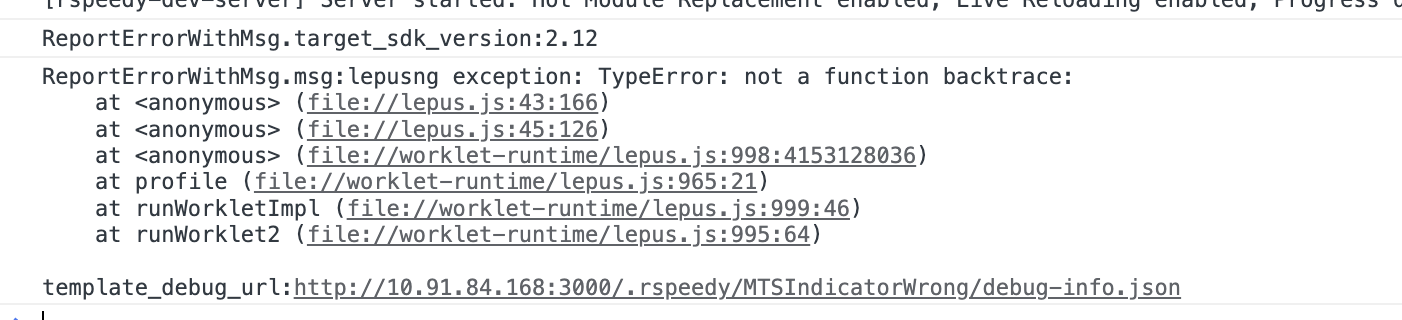
:::info Main Thread and Background Thread Functions Need Special APIs to Call Each Other
Main thread script and background thread script run in separate runtimes. Functions in one runtime cannot directly call functions in another runtime. They need "special bridges" to communicate:
- From background to main thread: Use [`runOnMainThread`](/next/api/react/Functions/runOnMainThread.md)
- From main thread to background: Use [`runOnBackground`](/next/api/react/Functions/runOnBackground.md)
:::
`onIndexUpdate` is a background thread function. When called in a main thread function, we need to use `runOnBackground`
```tsx title="useOffset.ts" "{12}"
function useOffset({
itemWidth,
onIndexUpdate,
}) {
const currentIndexRef = useMainThreadRef(0);
function updateOffset(offset: number) {
...
const index = Math.round(offset / itemWidth);
if (currentIndexRef.current !== index) {
currentIndexRef.current = index;
runOnBackground(onIndexUpdate)(index);
}
}
}
```
**This is an example below: swiper**
**Entry:** `src/MTSIndicatorCurrent, src/utils/pics.ts`
**Bundle:** `dist/MTSIndicatorCurrent.lynx.bundle` | Web: `dist/MTSIndicatorCurrent.web.bundle`
```tsx
import "./styles.scss";
import { useState } from "@lynx-js/react";
import { Indicator } from "../Components/Indicator/index.jsx";
import { SwiperItem } from "./SwiperItem";
import { useOffset } from "./useOffset";
import { useUpdateSwiperStyle } from "./useUpdateSwiperStyle";
export function Swiper({
data,
itemWidth = SystemInfo.pixelWidth / SystemInfo.pixelRatio,
}: {
data: string[];
itemWidth?: number;
}) {
const [current, setCurrent] = useState(0);
const { containerRef, updateSwiperStyle } = useUpdateSwiperStyle();
const { handleTouchStart, handleTouchMove, handleTouchEnd } = useOffset({
onOffsetUpdate: updateSwiperStyle,
onIndexUpdate: setCurrent,
itemWidth,
});
return (
{data.map((pic) => )}
);
}
```
v0.6.1
Now the progress indicator updates automatically as you scroll!
### Background Thread Calling Main Thread
A useful progress indicator should also support clicking to jump to the corresponding page. Let's add click-to-jump functionality to the `` component.
Add an `updateIndex` method in `useOffset` that uses `runOnMainThread` to call `updateOffset` to update the component position.
```tsx title="useOffset.ts" "{4}"
function useOffset({ itemWidth, onIndexUpdate }) {
function updateIndex(index: number) {
const offset = index * itemWidth;
runOnMainThread(updateOffset)(offset);
}
return {
updateIndex,
};
}
```
Here's the complete code:
**This is an example below: swiper**
**Entry:** `src/MTSIndicator, src/utils/pics.ts`
**Bundle:** `dist/MTSIndicator.lynx.bundle` | Web: `dist/MTSIndicator.web.bundle`
```ts
import { runOnBackground, runOnMainThread, useMainThreadRef } from "@lynx-js/react";
import type { MainThread } from "@lynx-js/types";
export function useOffset({
onOffsetUpdate,
onIndexUpdate,
itemWidth,
}: {
onOffsetUpdate: (offset: number) => void;
onIndexUpdate: (index: number) => void;
itemWidth: number;
}) {
const touchStartXRef = useMainThreadRef(0);
const touchStartCurrentOffsetRef = useMainThreadRef(0);
const currentOffsetRef = useMainThreadRef(0);
const currentIndexRef = useMainThreadRef(0);
function updateIndex(index: number) {
const offset = -index * itemWidth;
runOnMainThread(updateOffset)(offset);
}
function updateOffset(offset: number) {
"main thread";
currentOffsetRef.current = offset;
onOffsetUpdate(offset);
const index = Math.round(-offset / itemWidth);
if (currentIndexRef.current !== index) {
currentIndexRef.current = index;
runOnBackground(onIndexUpdate)(index);
}
}
function handleTouchStart(e: MainThread.TouchEvent) {
"main thread";
touchStartXRef.current = e.touches[0].clientX;
touchStartCurrentOffsetRef.current = currentOffsetRef.current;
}
function handleTouchMove(e: MainThread.TouchEvent) {
"main thread";
const touchMoveX = e.touches[0].clientX;
const deltaX = touchMoveX - touchStartXRef.current;
updateOffset(touchStartCurrentOffsetRef.current + deltaX);
}
function handleTouchEnd(e: MainThread.TouchEvent) {
"main thread";
touchStartXRef.current = 0;
touchStartCurrentOffsetRef.current = 0;
}
return {
handleTouchStart,
handleTouchMove,
handleTouchEnd,
updateIndex,
};
}
```
v0.6.1
Great! Now the progress indicator supports click-to-jump functionality.
## Values Across Main Thread and Background Thread Script
In the following example, we've added a snap effect animation to the `` component. Currently, the snap effect animation isn't ideal, we can add some props to customize it.
**This is an example below: swiper**
**Entry:** `src/EasingDefault, src/utils`
**Bundle:** `dist/EasingDefault.lynx.bundle` | Web: `dist/EasingDefault.web.bundle`
```ts {66-73}
import { runOnBackground, runOnMainThread, useMainThreadRef } from "@lynx-js/react";
import type { MainThread } from "@lynx-js/types";
import { useAnimate } from "./useAnimate";
export function useOffset({
onOffsetUpdate,
onIndexUpdate,
itemWidth,
dataLength,
}: {
onOffsetUpdate: (offset: number) => void;
onIndexUpdate: (index: number) => void;
itemWidth: number;
dataLength: number;
}) {
const touchStartXRef = useMainThreadRef(0);
const touchStartCurrentOffsetRef = useMainThreadRef(0);
const currentOffsetRef = useMainThreadRef(0);
const currentIndexRef = useMainThreadRef(0);
const { animate, cancel: cancelAnimate } = useAnimate();
function updateIndex(index: number) {
const offset = -index * itemWidth;
runOnMainThread(updateOffset)(offset);
}
function calcNearestPage(offset: number) {
"main thread";
const nearestPage = Math.round(offset / itemWidth);
return nearestPage * itemWidth;
}
function updateOffset(offset: number) {
"main thread";
const lowerBound = 0;
const upperBound = -(dataLength - 1) * itemWidth;
const realOffset = Math.min(lowerBound, Math.max(upperBound, offset));
currentOffsetRef.current = realOffset;
onOffsetUpdate(realOffset);
const index = Math.round(-realOffset / itemWidth);
if (currentIndexRef.current !== index) {
currentIndexRef.current = index;
runOnBackground(onIndexUpdate)(index);
}
}
function handleTouchStart(e: MainThread.TouchEvent) {
"main thread";
touchStartXRef.current = e.touches[0].clientX;
touchStartCurrentOffsetRef.current = currentOffsetRef.current;
cancelAnimate();
}
function handleTouchMove(e: MainThread.TouchEvent) {
"main thread";
const touchMoveX = e.touches[0].clientX;
const deltaX = touchMoveX - touchStartXRef.current;
updateOffset(touchStartCurrentOffsetRef.current + deltaX);
}
function handleTouchEnd(e: MainThread.TouchEvent) {
"main thread";
touchStartXRef.current = 0;
touchStartCurrentOffsetRef.current = 0;
animate({
from: currentOffsetRef.current,
to: calcNearestPage(currentOffsetRef.current),
onUpdate: (offset) => {
"main thread";
updateOffset(offset);
},
});
}
return {
handleTouchStart,
handleTouchMove,
handleTouchEnd,
updateIndex,
};
}
```
v0.6.1
We'll use this example to demonstrate value passing between main thread and background thread script.
### Main Thread Script Using Background Thread Script Values
First, we add a `duration` prop to the `` component to control the snap animation duration.
```tsx title="index.tsx"
```
Let's see how it works internally. When touch ends, `useOffset` calls the `animate` function to update the component position with animation effects. `animate` is a main thread function that accepts initial and target values and updates the component position according to the animation curve over the `duration` time.
```tsx title="useOffset.ts" {15-19}
function useOffset({
duration,
}) {
const currentOffsetRef = useMainThreadRef(0);
function updateOffset(offset: number) {
'main thread'
// Update Component Offset
}
...
function handleTouchEnd() {
'main thread'
...
animate({
from: currentOffsetRef.current,
to: calcNearestPage(currentOffsetRef.current),
onUpdate: updateOffset,
duration,
})
}
}
```
Here, both `animate` and `handleTouchEnd` are main thread functions, and they can access the background thread value `duration`.
:::info Main Thread Functions Can Use Background Thread Values
Main thread script and background thread script run in separate runtimes and are isolated from each other.
However, to simplify main thread script development, Lynx automatically passes background thread values that main thread functions **depend on** to those functions, though this process has some limitations:
- The dependent background thread values must be serializable, so functions, `Promise`s, and other non-serializable values cannot be passed.
- Value passing only occurs during component `render`. If background thread values change after `render`, main thread functions won't be aware of these updates.
:::
### Background Thread Passing Main Thread Values
Next, we add a `main-thread:easing` prop to the `` component to allow users to customize the animation curve.
```tsx title="index.tsx" {6}
function easeInOut(x: number) {
'main thread';
return x < 0.5 ? 2 * x * x : 1 - Math.pow(-2 * x + 2, 2) / 2;
}
;
```
Inside the component, the main thread function `easeInOut` is passed to the background thread hook `useOffset`
```tsx title="Swiper.tsx" {2,6}
function Swiper({
'main-thread:easing': MTEasing,
}) {
...
const { handleTouchStart, ... } = useOffset({
MTEasing,
});
}
```
And in `useOffset`, it's passed to the main thread function `animate`.
```tsx title="useOffset.ts" {3,11}
function useOffset({
duration,
MTEasing,
}) {
...
function handleTouchEnd(e: MainThread.TouchEvent) {
"main thread";
// ...
animate({
duration,
easing: MTEasing,
});
}
}
```
:::info Main Thread Values Can Be Passed by Background Thread But Not Used
Main thread values, such as `MainThreadRef` and main thread functions, cannot be directly used by the background thread.
However, they can be passed by the background thread, such as being passed as `props` to components or as function parameters to other hooks or functions, and ultimately used in the main thread.
:::
:::details Add main-thread: Prefix for Props That Need Main Thread Functions
You may have noticed that when passing main thread functions or `MainThreadRef` as attributes, they need the `main-thread:` prefix, like `main-thread:ref` and `main-thread:bindtouchstart`.
By convention, when a prop expects a main thread function, it should have the `main-thread:` prefix, like `main-thread:easing`. We recommend following this convention for custom components too. This helps component users understand that the property requires a main thread function.
However, because variable names containing colons `:` are illegal in JavaScript, you need to rename these props when using them inside components.
```tsx title="Swiper.tsx"
function Swiper({ 'main-thread:easing': MTEasing }) {}
```
:::
Finally, we have a swiper with customizable animation curves.
**This is an example below: swiper**
**Entry:** `src/Swiper, src/utils`
**Bundle:** `dist/Swiper.lynx.bundle` | Web: `dist/Swiper.web.bundle`
```tsx {15}
import { root } from "@lynx-js/react";
import "./styles.scss";
import { Page } from "../Components/Page";
import { picsArr } from "../utils/pics";
import { Swiper } from "./Swiper";
const easing = (x: number) => {
"main thread";
return x < 0.5 ? 2 * x * x : 1 - Math.pow(-2 * x + 2, 2) / 2;
};
export default function App() {
return (
);
}
root.render();
```
v0.6.1
## Summary
In this tutorial, we started with a simple `` component, gradually optimized its performance, and finally implemented a swiper with customizable animation curves.
We learned about:
- Using direct node manipulation to optimize performance
- Leveraging main thread script to enhance interaction experience
- Implementing communication between main thread and background thread
- Understanding value passing between main thread and background thread script