

API Status Dashboard Guide
This usage guide was generated with AI assistance. If you find any inaccuracies, please help us improve it by submitting a pull request.
This guide explains how to use the Lynx API Status Dashboard to explore API compatibility across different platforms.
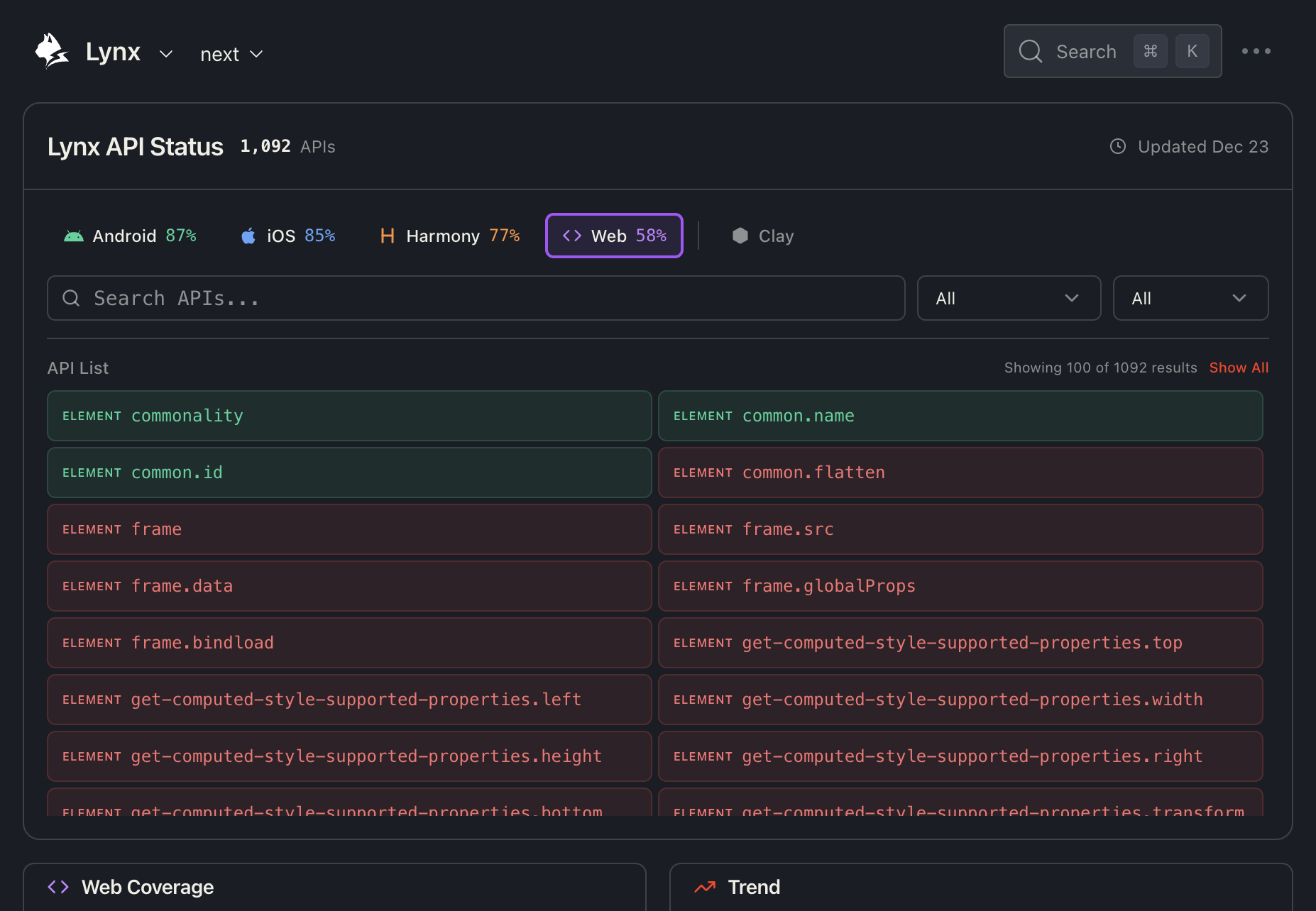
1. Select Platform
At the top of the dashboard, you'll find the Platform Selector which allows you to select one or multiple platforms to view their specific API coverage.
Native Platforms
- Android - Mobile Android platform
- iOS - Apple iOS platform
- Harmony - HarmonyOS platform
- Web - Web Lynx implementation
Use the checkboxes to select multiple platforms simultaneously. The dashboard will update to show coverage statistics for the combined selection.
Clay Platforms
Click the Clay toggle button to reveal additional Clay platform options:
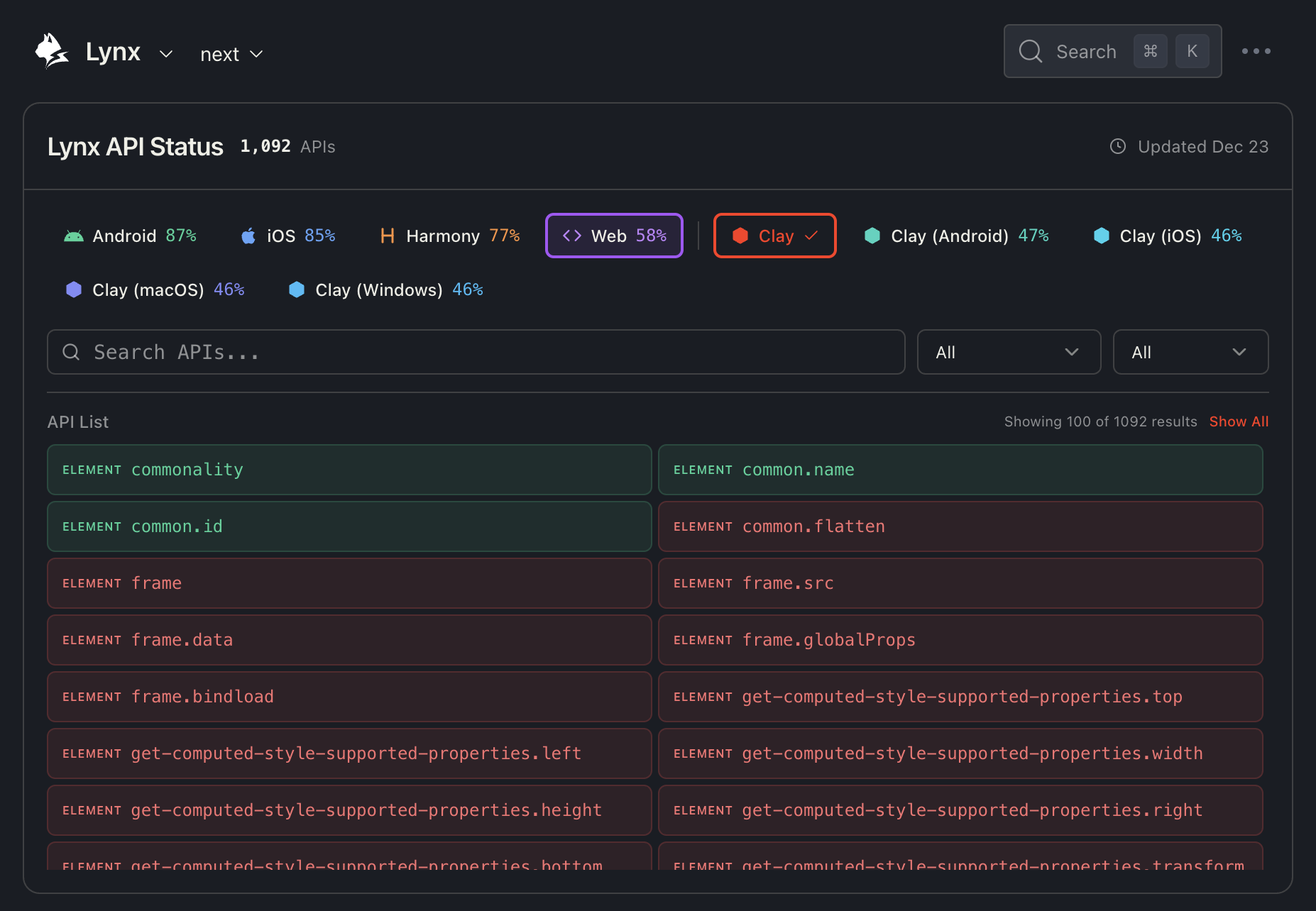
Clay platforms include:
- Clay (Android) - Clay running on Android
- Clay (iOS) - Clay running on iOS
- Clay (macOS) - Clay running on macOS
- Clay (Windows) - Clay running on Windows
2. Search, Filter, and View APIs
Search Box
Use the search box to quickly find specific APIs by name or description. The search is case-insensitive and matches partial text.
Examples:
- Search
imageto find all image-related APIs - Search
scrollto find scrolling functionality - Search
animationto find animation APIs
Category Filter
The first dropdown allows you to filter APIs by category:
- All - Show all categories
- ELEMENT - Element-related APIs
- CSS - CSS property support
- API - JavaScript API methods
State Filter
The second dropdown filters APIs by their support status on the selected platform:
- All - Show all APIs
- Supported - Only show supported APIs
- Unsupported - Only show unsupported APIs
API List
The API list displays all matching APIs in a two-column grid layout. Each API item shows:
- Category badge (e.g.,
ELEMENT,CSS,API) - API name (e.g.,
commonality,image.loop-count) - Color coding:
- 🟢 Green background - API is supported on all selected platforms
- 🟡 Yellow background - API is partially supported (supported on some but not all selected platforms)
- 🔴 Red background - API is not supported on any selected platform
For partially supported APIs, a small indicator (e.g., "2/3") shows how many of the selected platforms support that feature.
By default, only the first 100 results are shown for performance. Click "Show All" to display all matching results.
API Detail Drawer
Click on any API item to open the detailed compatibility drawer:
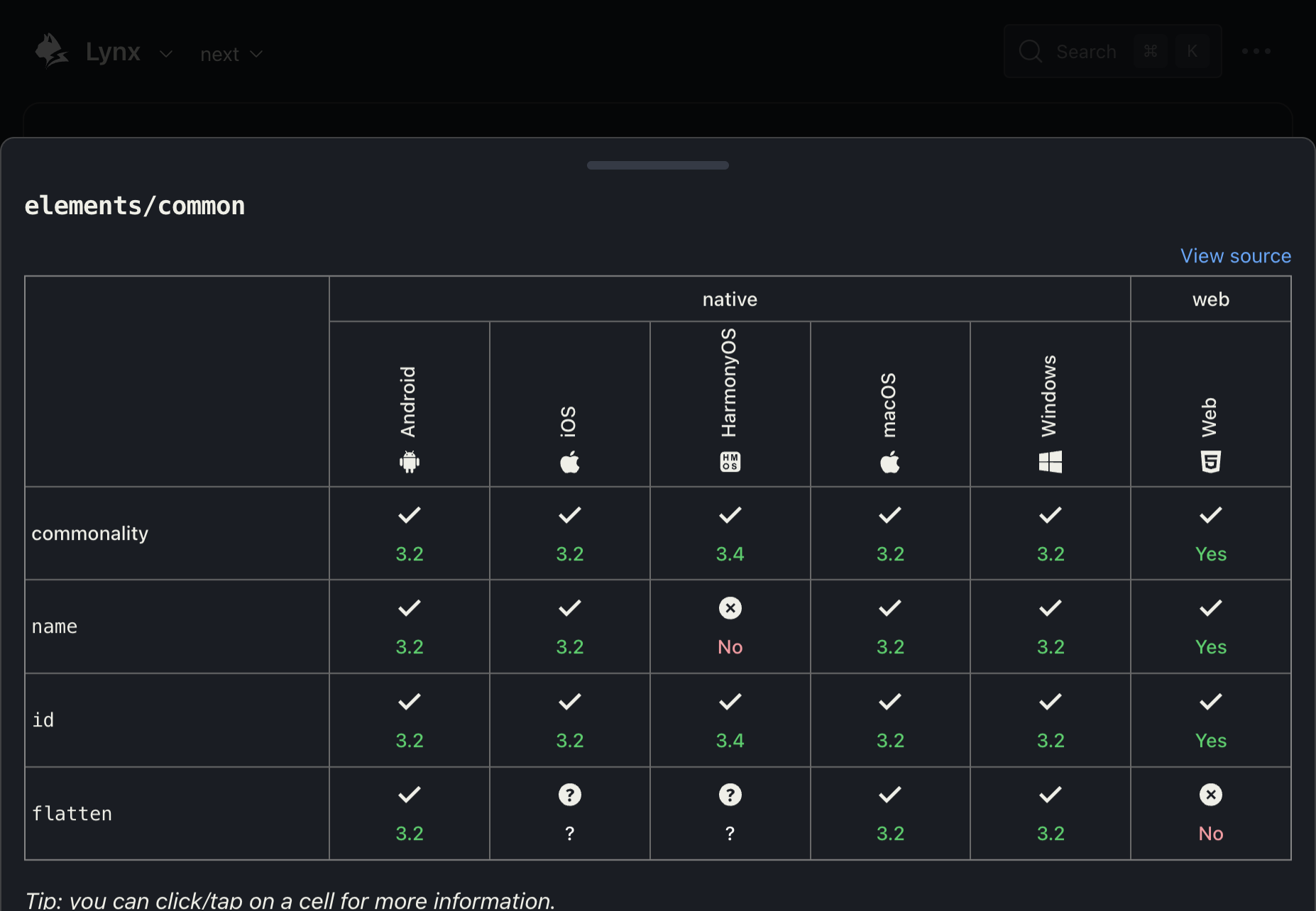
The drawer shows a compatibility table with:
- Rows - Each sub-API or property
- Columns - All platforms (Android, iOS, HarmonyOS, macOS, Windows, Web)
Click the "View source" link to see the raw compatibility data in the GitHub repository.
3. View Platform Coverage and Trends
The bottom section shows platform statistics and historical trends:
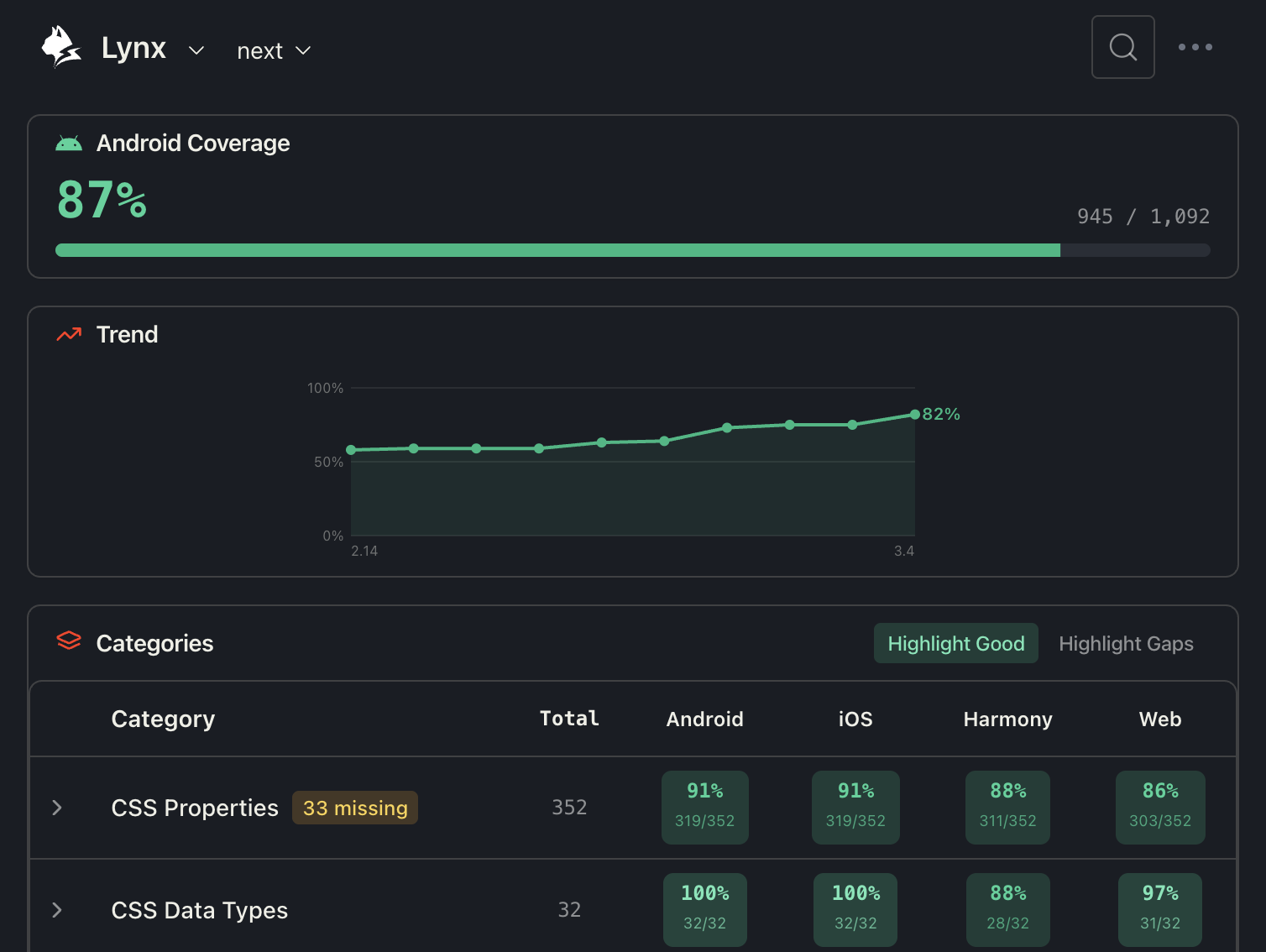
Coverage Card (Left)
- Percentage - Overall API coverage (e.g., 87%)
- Fraction - Exact count (e.g., 945 / 1,092)
- Progress bar - Visual representation with platform-specific color
Trend Chart (Right)
- X-axis - Lynx versions (e.g., 2.14 → 3.4)
- Y-axis - API coverage percentage
- Line - Coverage progression over time
This helps you understand how API support has improved across versions.
Category Table
The Coverage section provides a breakdown by API category:
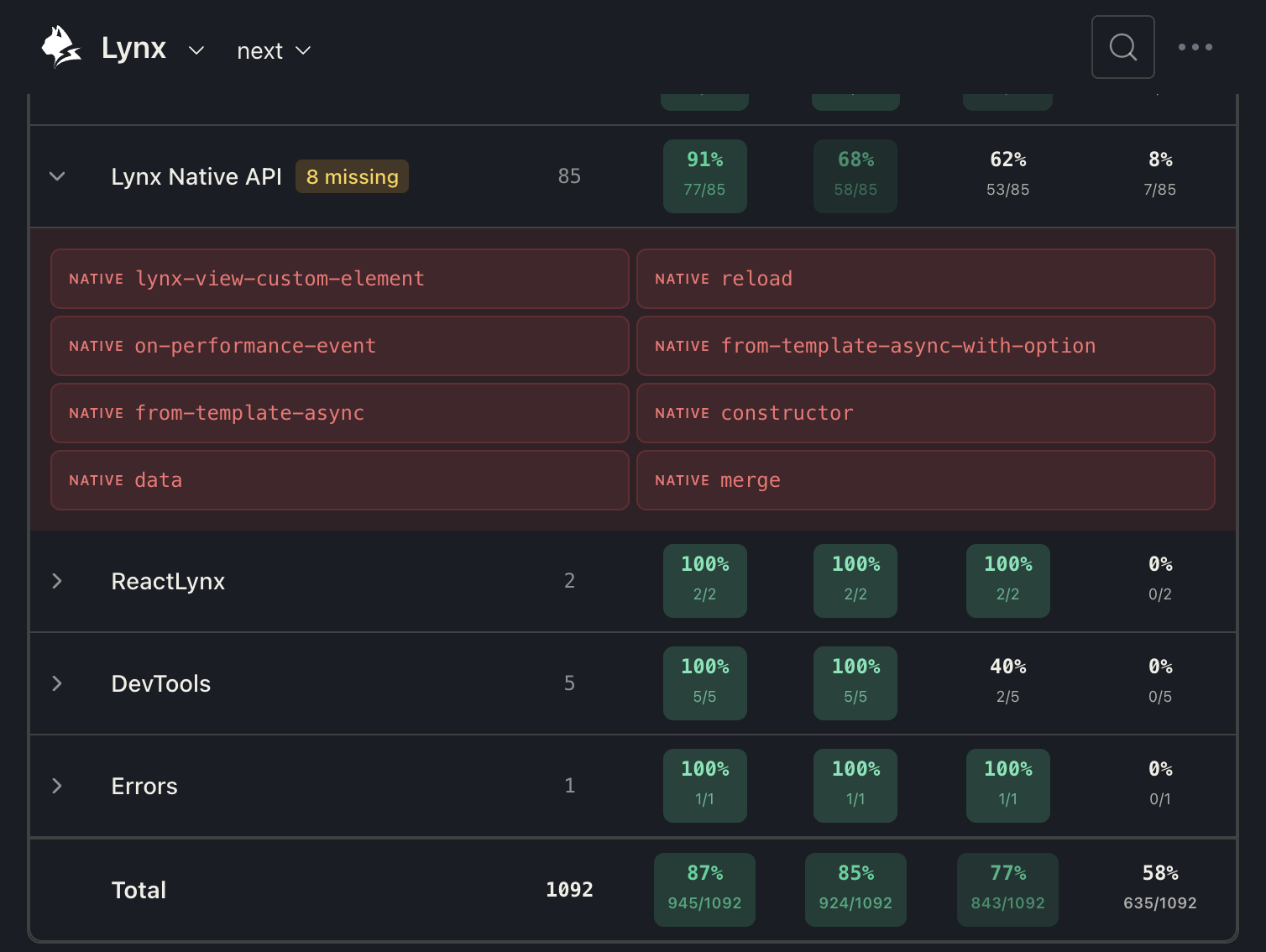
Highlight Modes:
- Highlight Good (Green mode) - Emphasizes high coverage categories
- Highlight Gap (Red mode) - Emphasizes low coverage categories
Click on any category row to expand it and see the individual APIs. Unsupported APIs are highlighted in red for easy identification.
4. Recently Added APIs
The Recently Added section lists APIs that were recently added to Lynx, grouped by version.
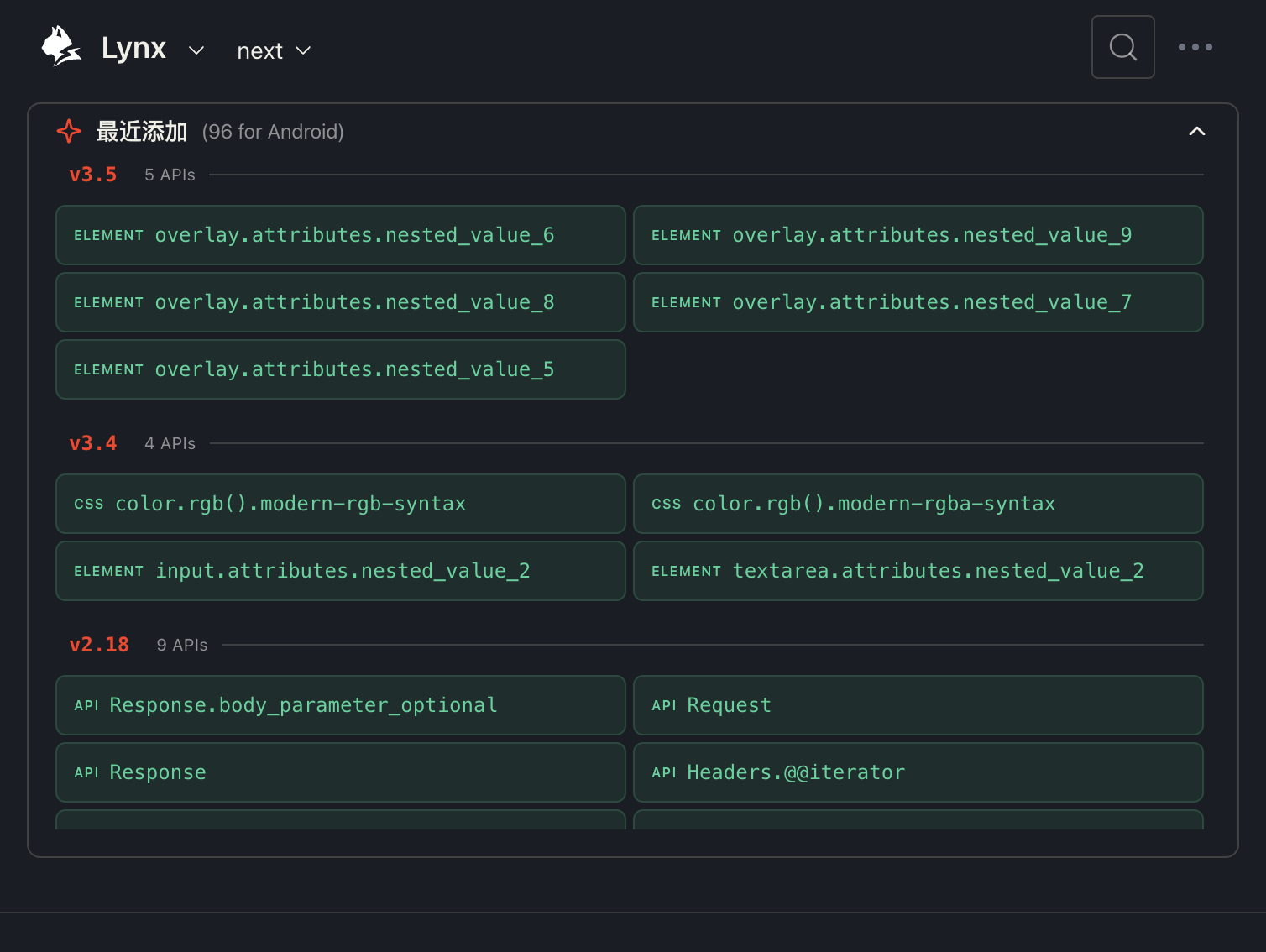
Each version group shows:
- Version number (e.g., v3.5, v3.4, v2.18)
- API count for the selected platform
- List of APIs added in that version
This is useful for tracking new features in each Lynx release.
Tips
- Start with platform selection - Choose your target platforms (one or more) first to see relevant coverage data.
- Use Colorblind Mode - Toggle the Colorblind Mode switch in the sidebar footer to enable a high-contrast Blue/Orange theme for better accessibility.
- Use search for specific APIs - If you know the API name, search is faster than scrolling.
- Check the drawer for details - The compatibility table shows version-specific information.
- Monitor trends - Use the trend chart to understand coverage improvements over time.
- Toggle Clay for desktop - Enable Clay platforms if you're building cross-platform desktop apps.
Need Help?
If you have questions about API compatibility or need assistance:
- Check the API documentation
- Contribute on GitHub