


Building a Custom Window
Electron Capability Mapping
Lynxtron's custom window support is aligned with Electron's custom / frameless window support.
Window shape is controlled by window creation options, and draggable regions are declared through CSS. The difference is that Electron uses BrowserWindow and Web pages for these capabilities, while Lynxtron uses LynxWindow and Lynx UI.
The draggable region CSS is:
Example: Floating Clock Window
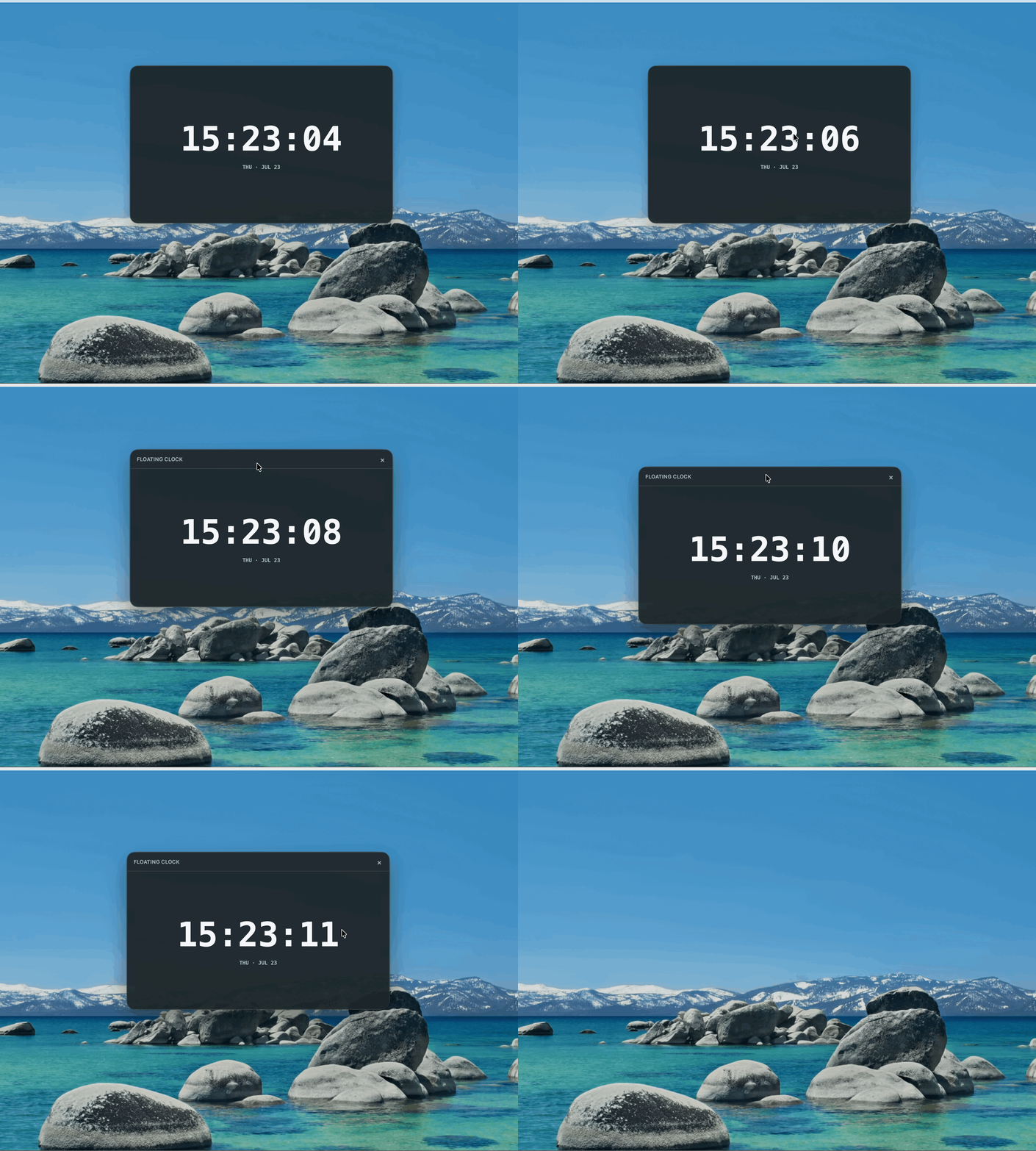
This demo uses a floating clock to show a custom window: the window itself is frameless and transparent, the clock UI is drawn by the app, and a custom draggable title bar appears when the mouse hovers over the window.
Define the Window Shape
The window shape is controlled by LynxWindow creation options. Common options include:
frame: false: remove the system default border and title bar.transparent: true: create a transparent window.titleBarStyle: hide or adjust the system title bar.trafficLightPosition: adjust the macOS traffic light button position in frameless windows.
For example, create a frameless transparent window:
Define UI Draggable Regions
After the system title bar is removed, a frameless window no longer has a default system draggable region. You need to explicitly declare which regions in Lynx UI can drag the window.
You can use <title-bar-view>, or use the -x-app-region: drag CSS property. The following example declares a custom title bar region with CSS:
Buttons such as close, minimize, and maximize in a custom title bar can call main-process window APIs through Node.js and Lynx communication.