

Native Modules
When developing Lynx applications, you may encounter scenarios where you need to interact with native platform APIs not covered by Lynx. Or, you might want to reuse existing native platform code in your Lynx application. Regardless of the reason, you can use Native Modules to seamlessly connect your JavaScript code with native code, allowing you to call native platform functions and APIs from your JavaScript code. The following will detail how to write a native module.
The basic steps for writing a native module are as follows:
- Use TypeScript to declare your typed interface specification.
- Use your interface specification to write your Lynx application code.
- Follow your interface specification to write your native platform code and connect your native code to the Lynx runtime environment.
Next, this guide will demonstrate these steps through an example of building a native module.
Currently, native modules can only be used in Background Thread Scripting.
Local Persistent Storage Module
This guide aims to show you how to write a local persistent storage module that enables your Lynx application to use JavaScript code to store data persistently locally.
To implement local persistent storage on different platforms, use the matching platform native API or the Lynx C/C++ APIs:
- Android: SharedPreferences
- iOS: NSUserDefaults
- HarmonyOS: Preferences
- Desktop (Node-API): Lynx C/C++ APIs and the Weak Node-API C++ wrapper
Declare a Typed Interface Specification
The interface specification of a native module serves as a bridge between the native code and the Lynx JavaScript runtime, defining the methods and data types passed between them.
The steps to declare an interface specification are as follows:
- Create a Lynx project: Refer to the Create a Lynx Project guide to create your Lynx project.
- Create a new type declaration file: Create a new file named
src/typing.d.tsin your Lynx project. - Implement the interface specification: Implement the interface specification of the native module in the
typing.d.tsfile.
You can view the types available in the specification and their corresponding native types in the Type Mapping Table.
The following is the implementation of the interface specification for the local persistent storage module:
NativeModules is a global built-in object provided by Lynx in the JavaScript runtime. It serves as the access point for all native modules, and all native module declarations must be defined within it.
Write Your Lynx Application Code
Next, write your application code in src/App.tsx within your Lynx project.
The following is the App.tsx for the local persistent storage module. It includes an area to display the content read from local storage and three buttons for reading, writing, and clearing local storage.
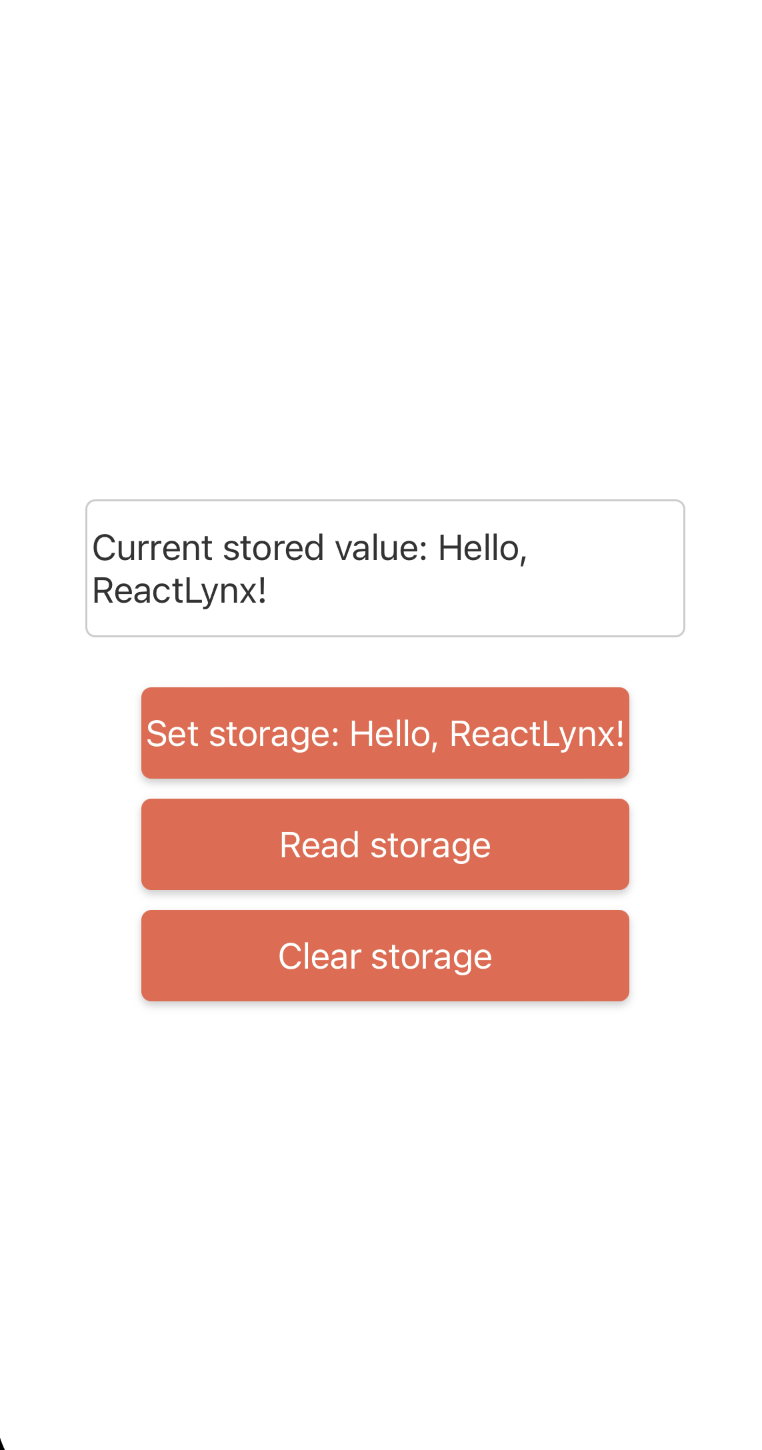
Write Your Native Platform Code
Now, you can start writing the native platform code.
Prepare Your Xcode Project
First, follow the Build Lynx Explorer for iOS guide to create a Lynx Explorer project locally and open it with Xcode.
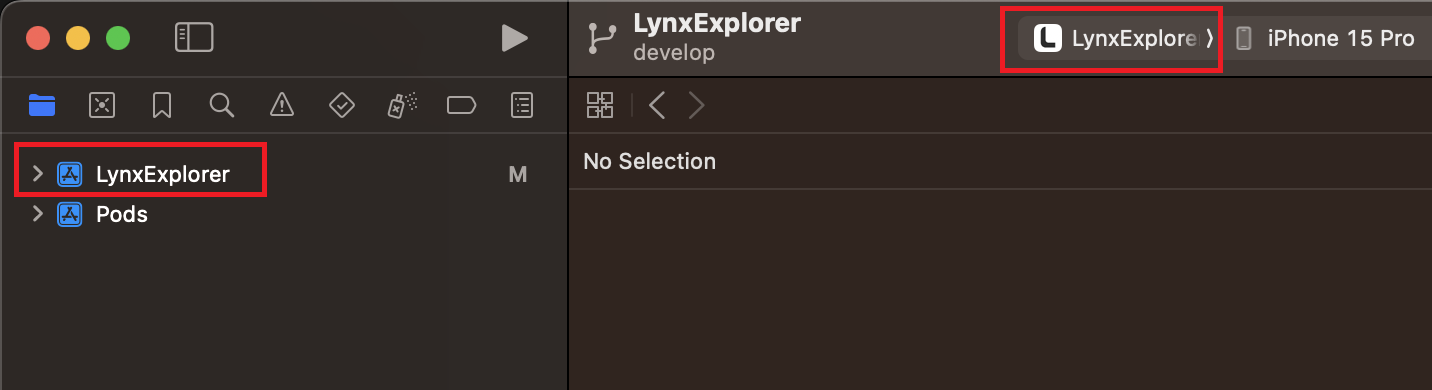
Next, right-click on the modules folder in the Lynx Explorer project and select New File... to create the header and source files for the native module.
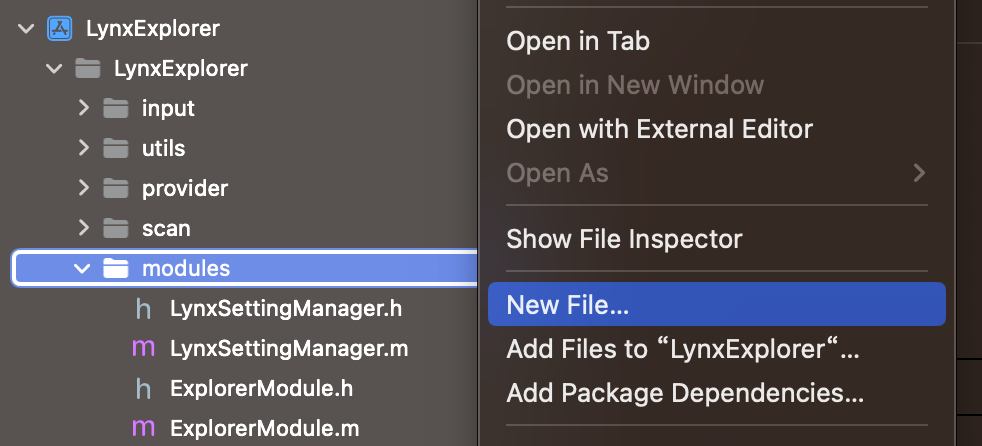
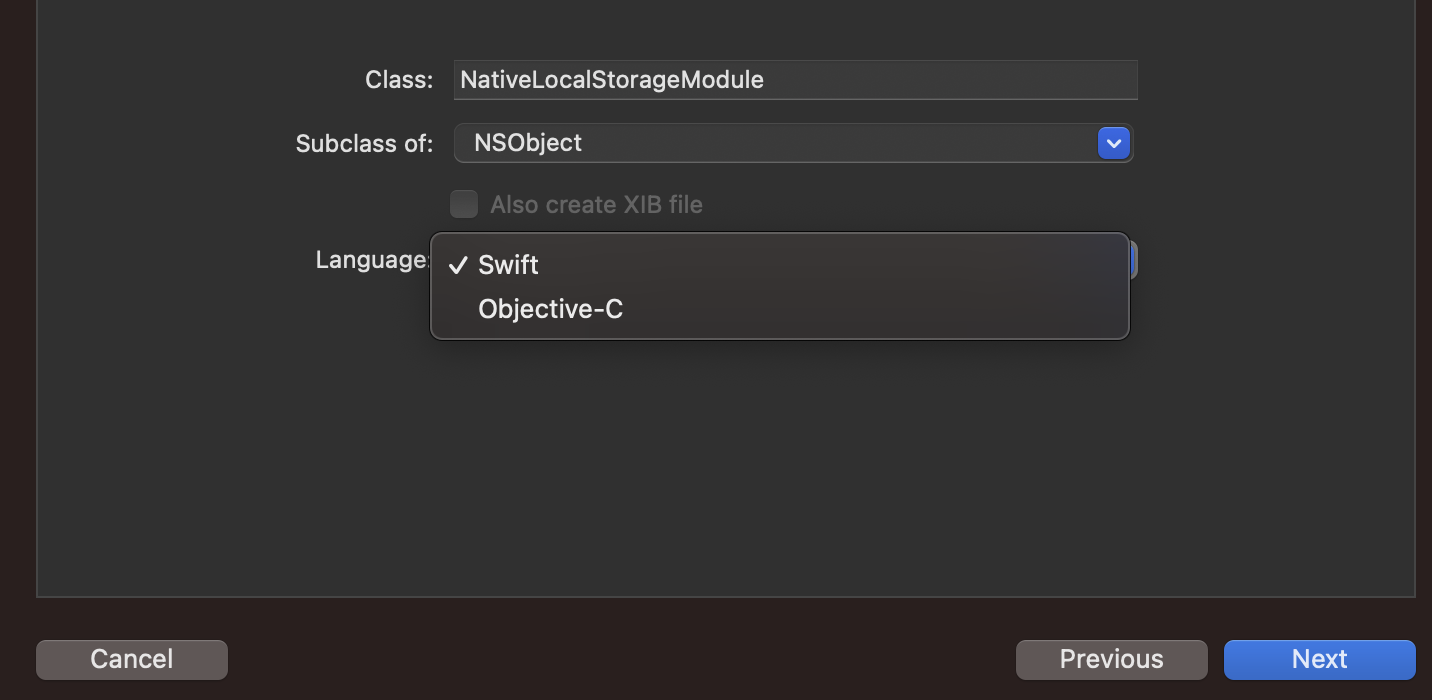
Then, use the Cocoa Touch Class template.

Name the class NativeLocalStorageModule. You can choose to create it in either Objective-C or Swift. Then click Next to complete the file creation.
Implement Your Native Module
You need to implement an additional static method name in the native module to return the exported name of your native module. Also, implement an additional static method methodLookup in the native module to map the names of the methods to be exported to their corresponding selectors.
Next, you need to register your native module into the Lynx runtime environment.
Add the following registration code to the setupLynxEnv method in the explorer/darwin/ios/lynx_explorer/LynxExplorer/LynxInitProcessor.m file of the Lynx Explorer project to register your native module with the global configuration of the Lynx runtime environment.
Run Your Code
Once you've prepared everything, you can now build and run your code.
First, follow the Build and Run iOS Lynx Explorer guide to build Lynx Explorer and install it on your phone.
Next, refer to the Install Dependencies & Start the Development Server guide to install dependencies and start the development server in the root directory of your Lynx project.
Install dependencies:
Start the development server:
You'll see a QR code and an artifact link in the console. Use Lynx Explorer to scan the QR code or enter the artifact link to open your Lynx page.
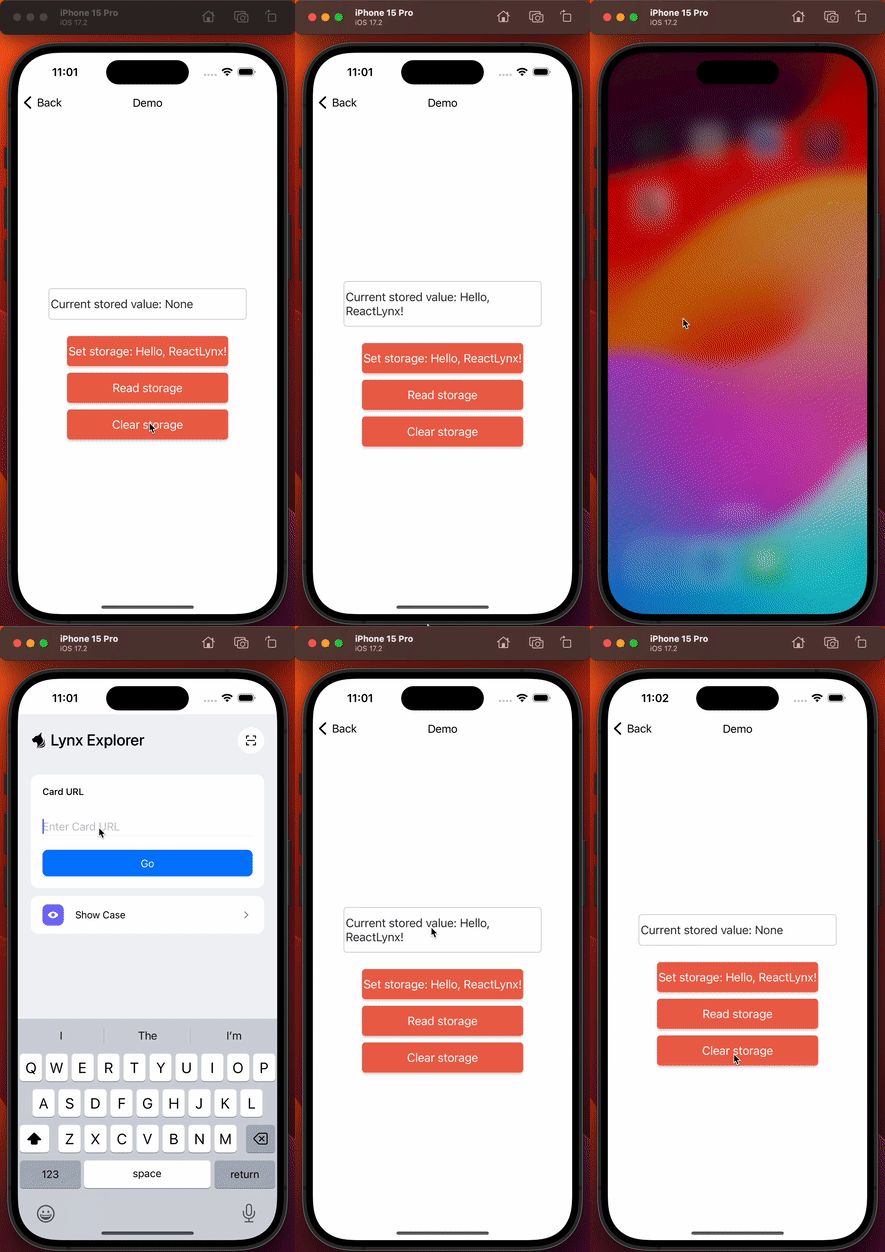
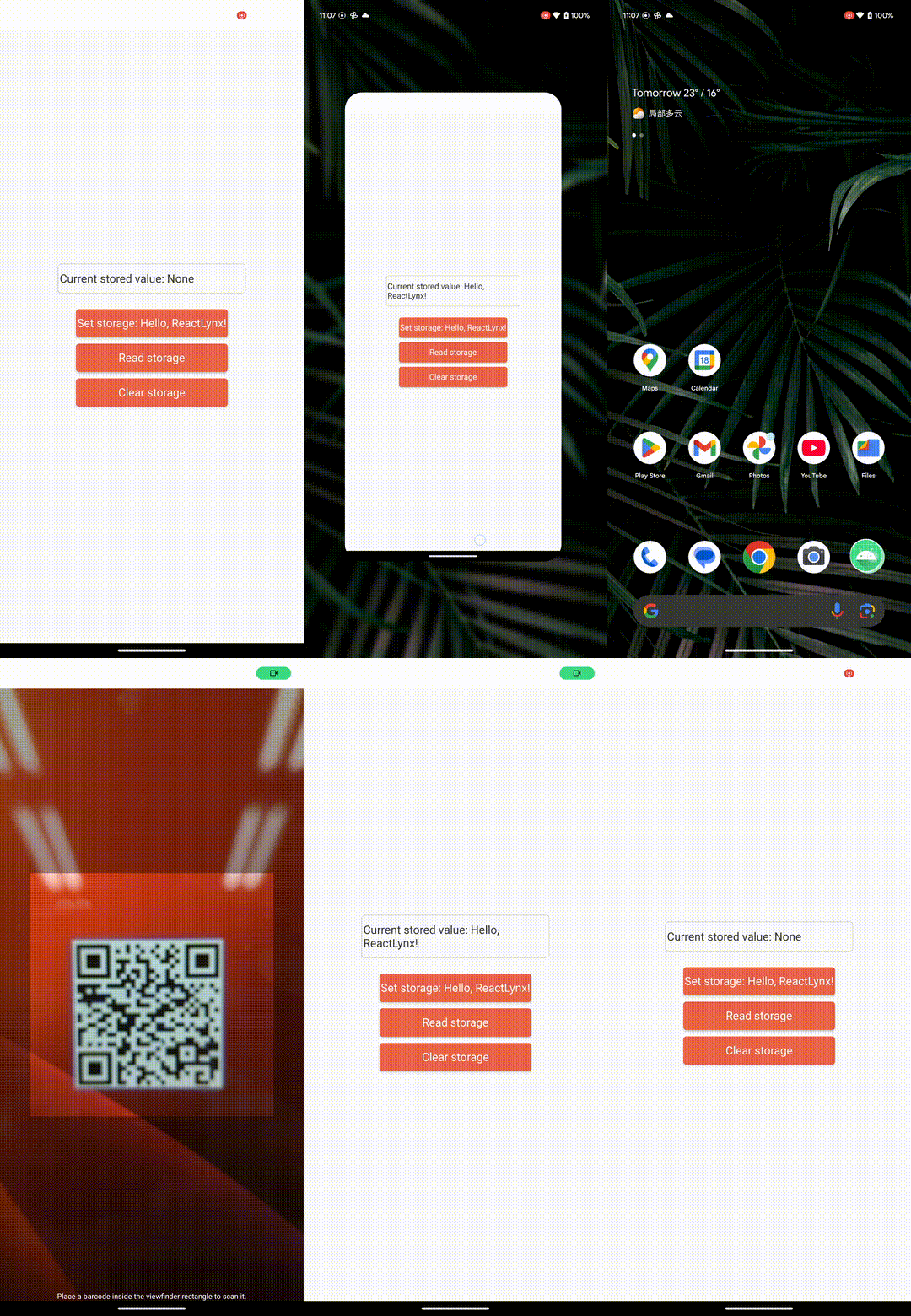
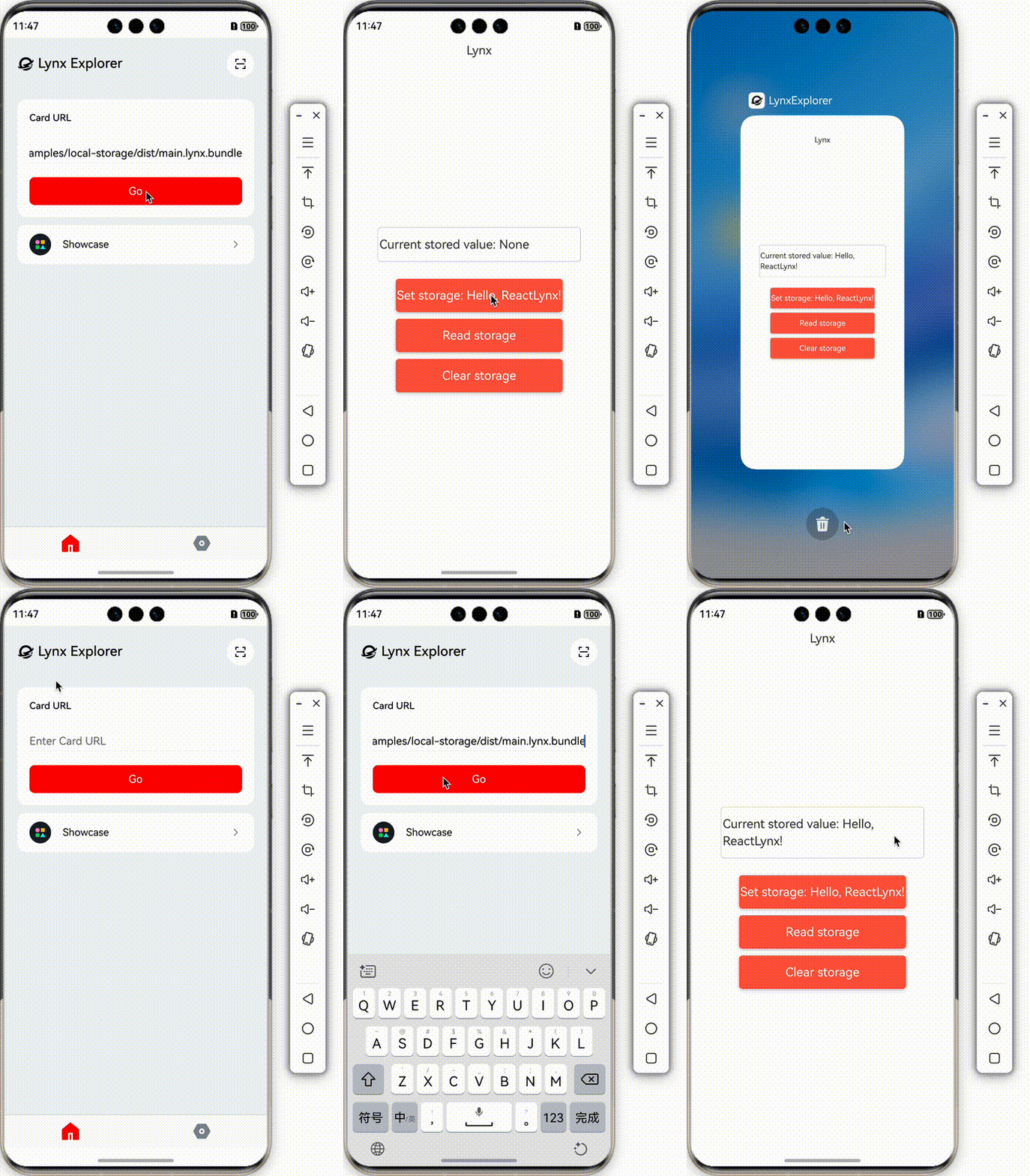
Congratulations! You have successfully created a native module. If you want to create a native module in your application, you first need to integrate Lynx by referring to the Integrate with Existing Apps guide, and then follow the steps above to create the native module.
Type Mapping Table
Native Module Permission Verification (Experimental)
Starting from Lynx SDK 3.5, developers can use LynxViewBuilder to set a native module validator for the current LynxView, thereby controlling all native module calls within the LynxView. Currently, this feature is only supported on Android and iOS, with HarmonyOS support to be added in the future.
When creating a LynxView using LynxViewBuilder, register a native module validator through the registerMethodAuth interface. The validator will apply to all native module calls within the current LynxView.
Native Module Validator Interface
Native Module Validator Registration Method