

Lynx DevTool
Lynx DevTool is a collection of performance and debugging tools for Lynx apps.
You need to integrate DevTool into your Lynx pages, and then connect to the device via the DevTool Desktop Application to debug the page.
Experience Lynx DevTool
Run Lynx Explorer
Please visit Lynx Explorer and follow the documentation to run Lynx Explorer app locally.
Enable Debugging Feature in Lynx Explorer
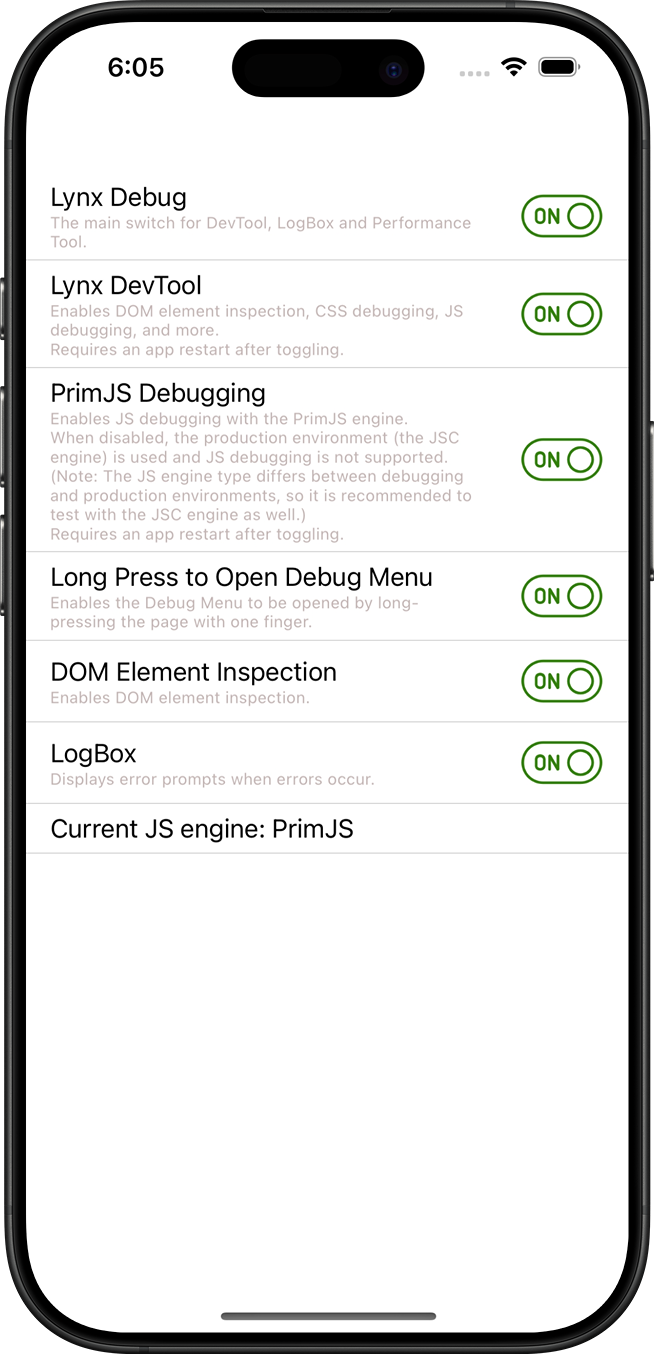
Ensure that the Lynx Debug and Lynx DevTool switches are enabled in the Switch page of Lynx Explorer.
Run Lynx DevTool Desktop Application
You can visit Lynx DevTool to get the latest version of Lynx DevTool desktop application.
Launch Lynx DevTool Desktop Application.
Use Data Cable to Connect Debugging Device
Use a data cable to connect the debugging device, and Lynx DevTool Desktop Application will automatically recognize the debugging device and display the Lynx app information on the debugging device.
View Device Connection Status

In the toolbar, you can view the connection status of the current device.
- USB represents that the device is connected via USB cable.
- Time represents the delay of communication with the device.
Choose Debugging Device

In the toolbar, you can click this button, and select other connected devices from the pop-up menu.
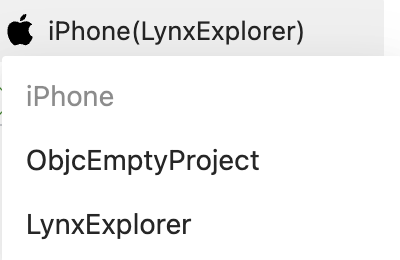
After switching devices, please ensure that the Lynx app on the device is running in the foreground.
Common Issues and Troubleshooting
Question: Why can't Lynx DevTool desktop application recognize my debugging device?
Answer: Make sure you have connected your development device (e.g., your MacBook) and the device running the Lynx application (e.g., your phone) using a data cable.
For iOS devices, ensure that you have installed Xcode and iOS SDK with matching versions on your development device.
For Android devices, in addition to ensuring a data cable connection, you also need to enable Developer Mode and USB debugging on your Android device:
- Enable Developer Mode on your Android device - specific steps may vary between devices, please refer to the Android Developer Documentation
- Enable "USB Debugging" in the developer options
- When the device is connected to your computer, an authorization prompt will appear, click "Allow"
You can try launching Xcode or Android Studio to compile and run an application to verify that you can connect to the device properly.
Compatibility
LCD tables only load in the browser
Provide Feedback
Welcome to experience Lynx DevTool. If you need a hand, please file an issue in Lynx Issues. Thank you!