

Layers Panel
The Layers panel helps you understand the composition of Lynx pages and how the framework presents content, analyzing its 3D layers to discover rendering issues.
Overview
Use the Layers panel to perform the following operations:
- View page layers
- Inspect page layers
Open the Layers Panel
To open the Layers panel, follow these steps:
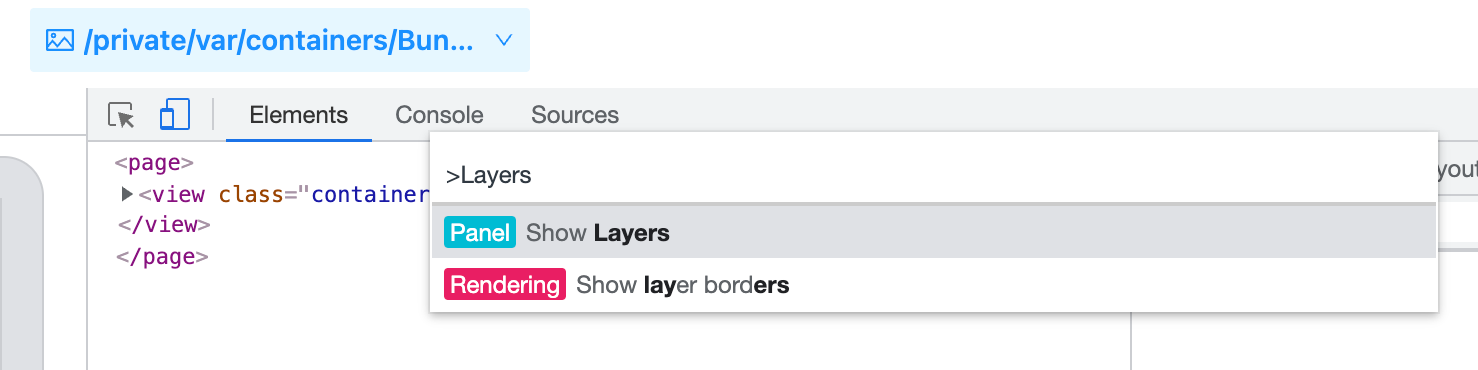
- Press Command+Shift+P to open the command menu.
- Start typing Layers, select Show Layers, and then press Enter.
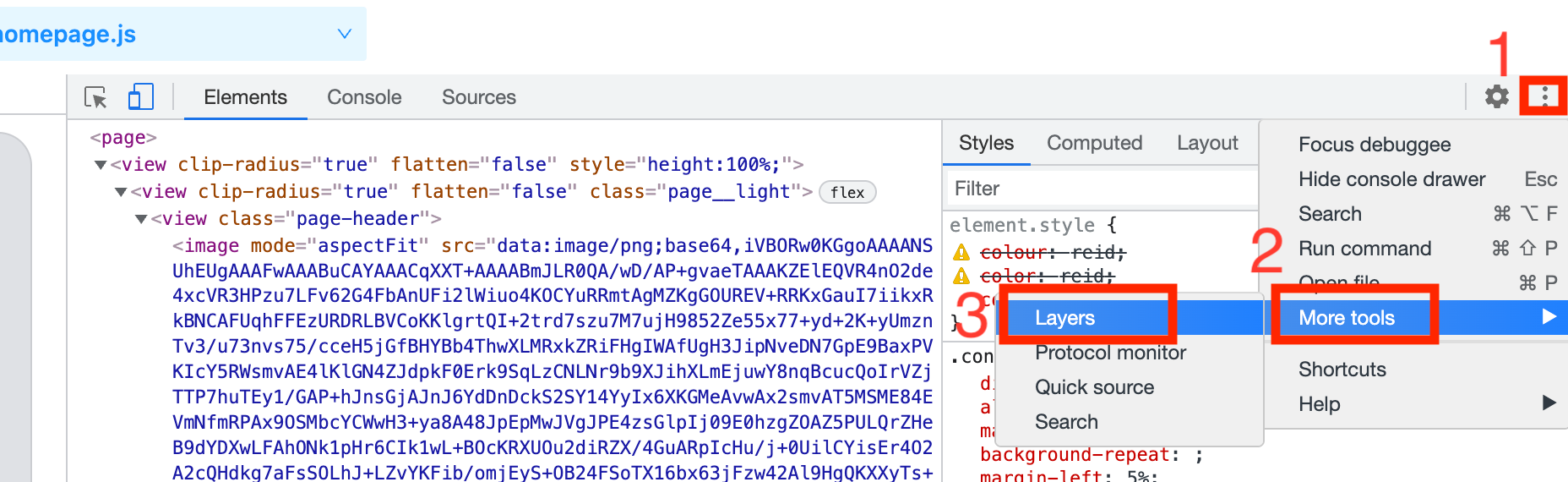
Or, select the More options in the upper right corner -> More tools -> Layers.
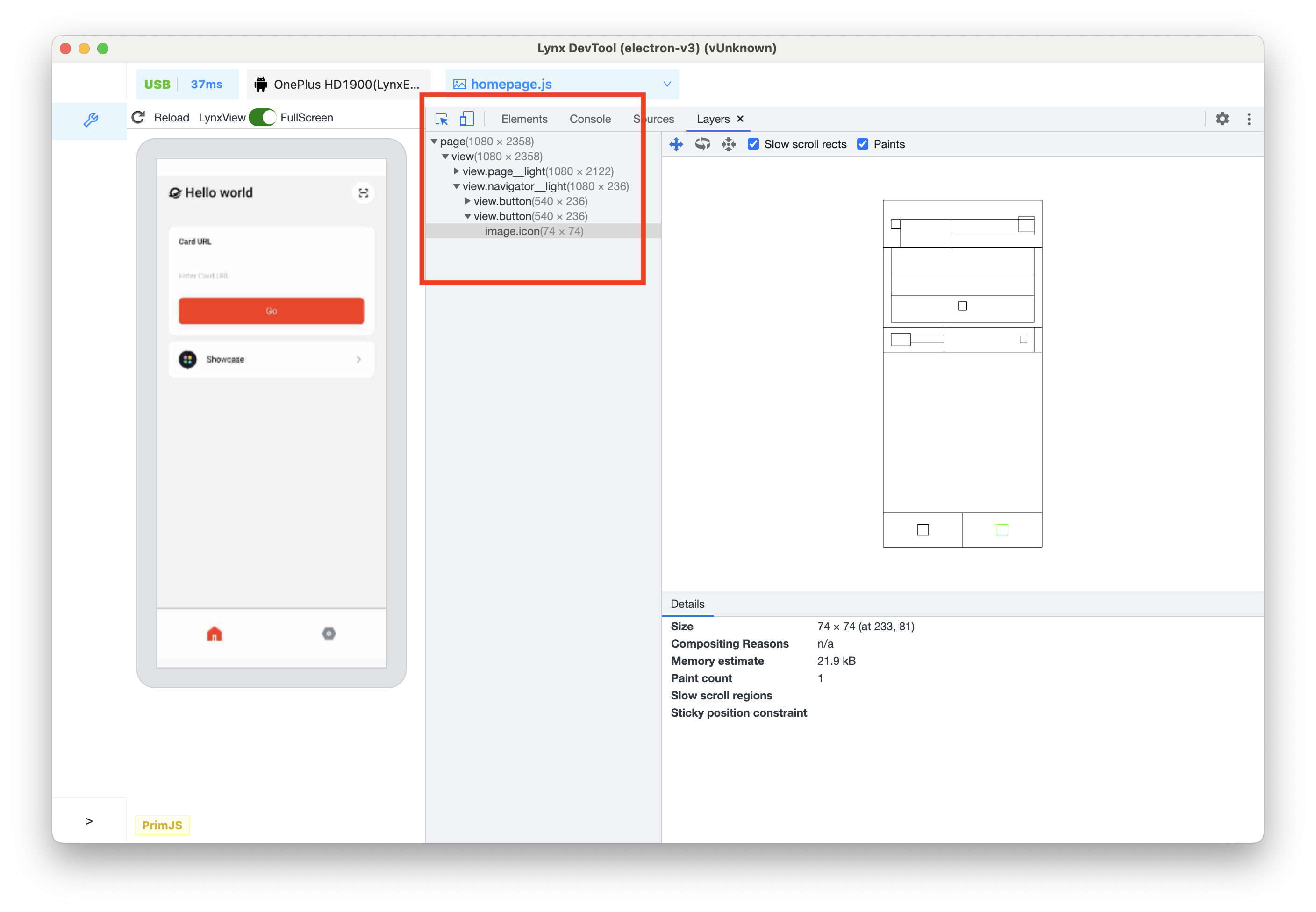
View page Layers
The leftmost part of the Layers panel lists all the rendered layers of the Lynx page in an expandable tree. This tree structure is updated as the mobile Lynx page is updated. Layers are identified by their CSS selector or a number (followed by the layer size in pixels).
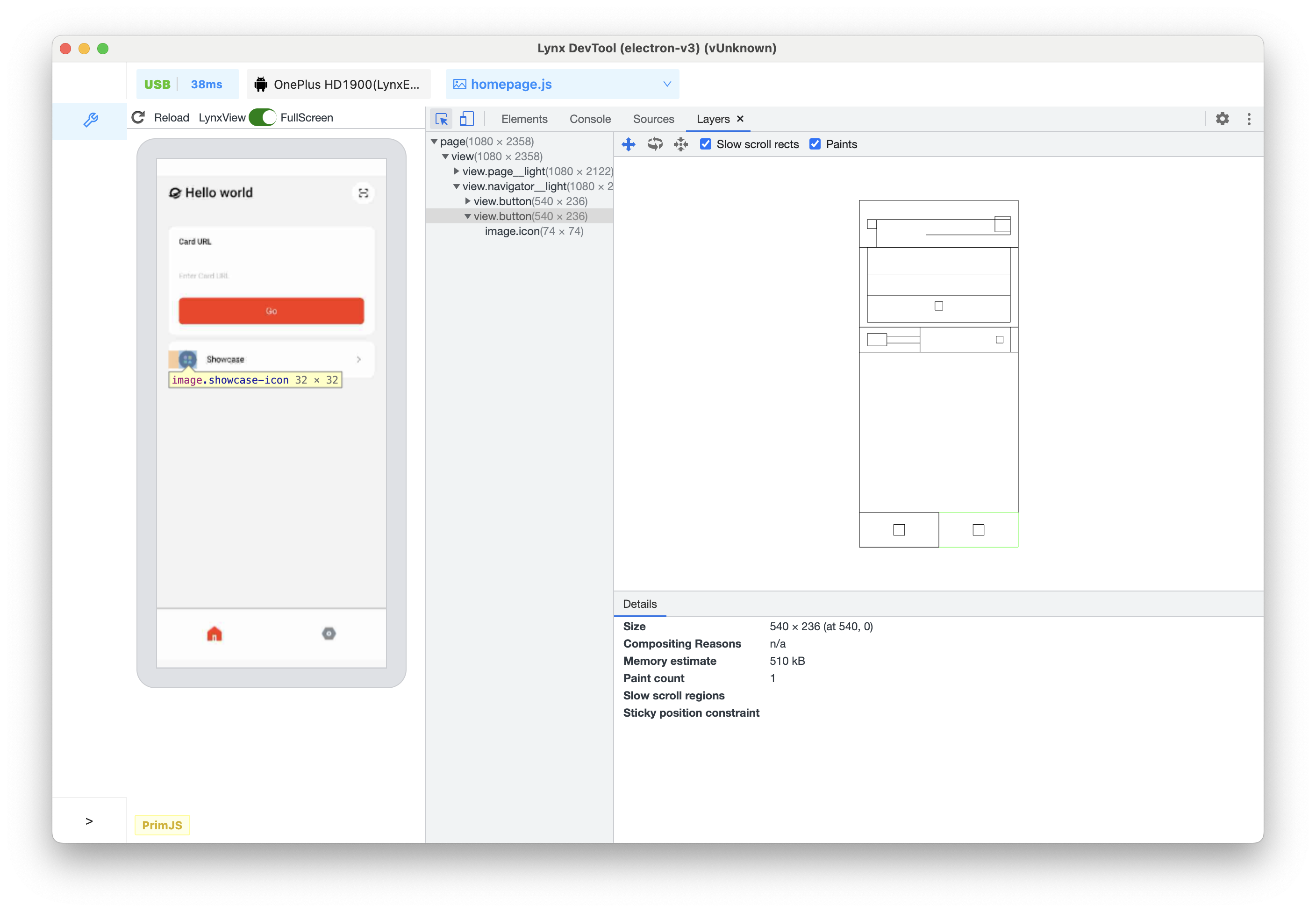
Hover the mouse over a layer to highlight it on the Lynx page preview window. A tooltip will be displayed on the page preview, which contains the following information:
- The selector of the layer
- The size of the layer (in pixels)
Inspect page Layers
Click on a layer to view more information in the Details pane.
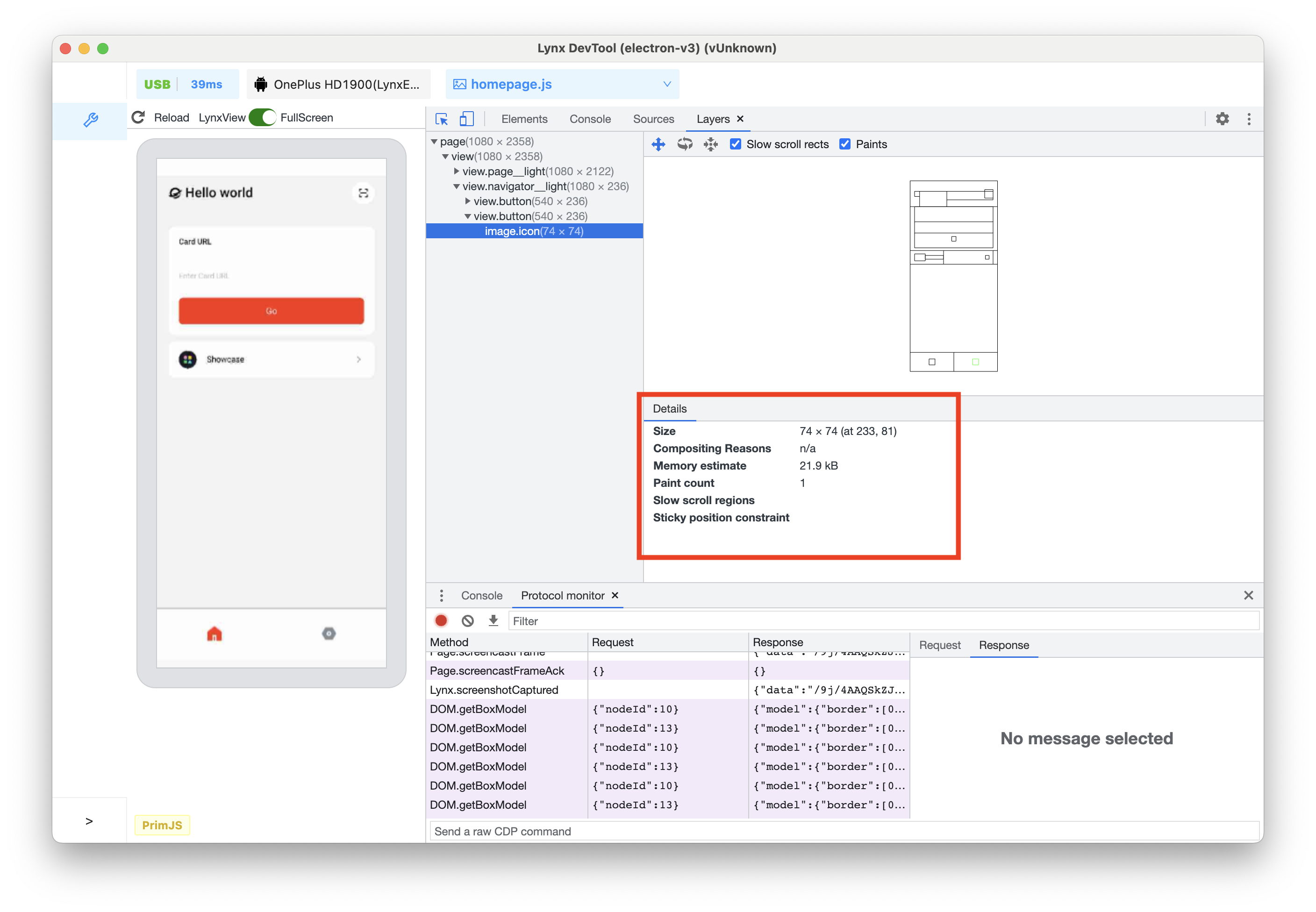
Depending on the layer, the following information will be displayed:
- Size
- Compositing reason
- Memory estimate
- Number of draws
The following figure shows the stacking and arrangement of the layers of this Lynx page.
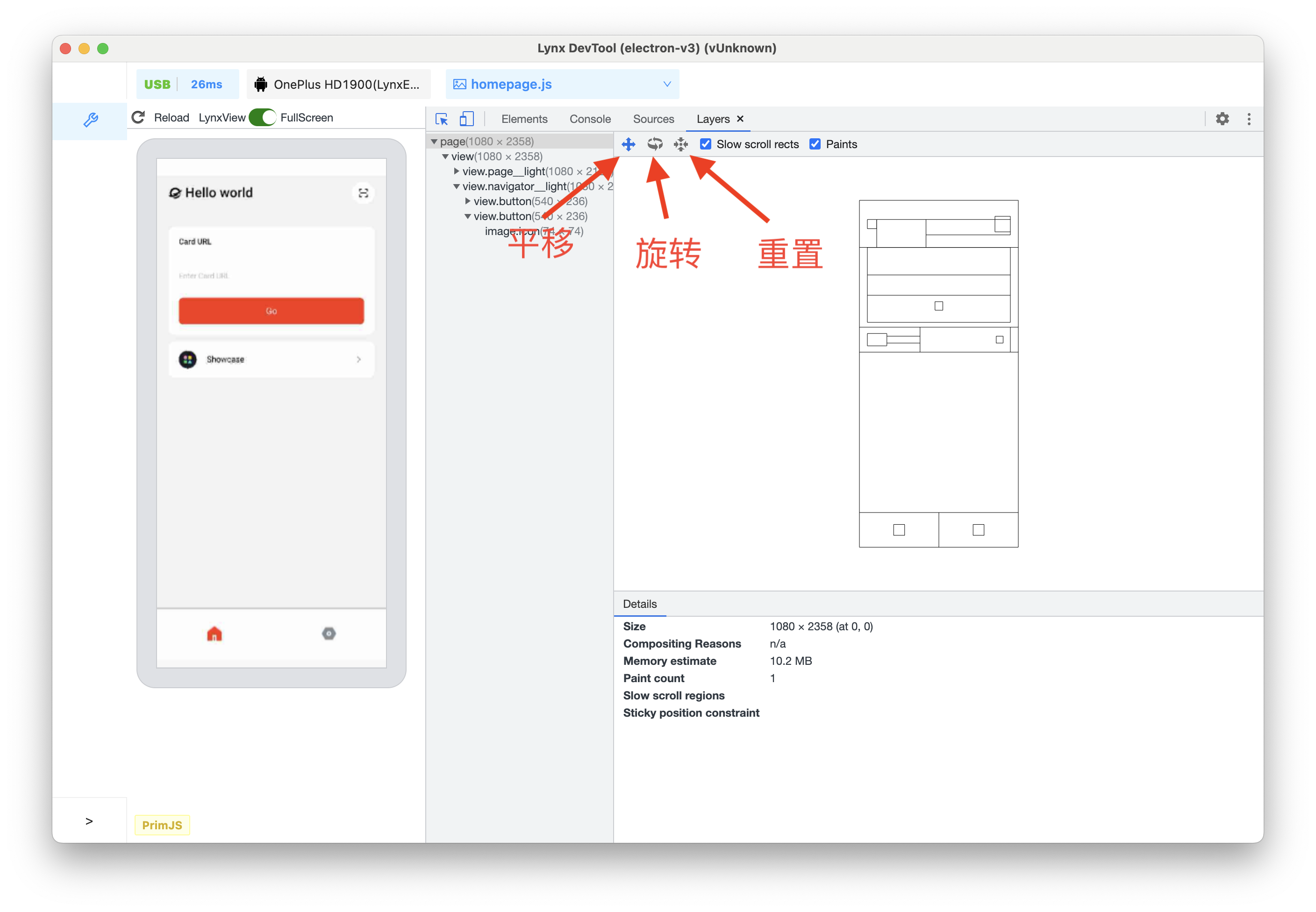
To move the chart, do the following:
- Use WASD to move the chart. Press W to pan up, A to pan left, S to pan down, and D to pan right.
- Click the Pan Mode icon to move along the X and Y axes.
- Click the Rotate Mode icon to rotate along the Z axis.
- Click Reset Transform to reset the chart to its original position.
- Scroll the mouse wheel up to zoom in.
- Scroll the mouse wheel down to zoom out.
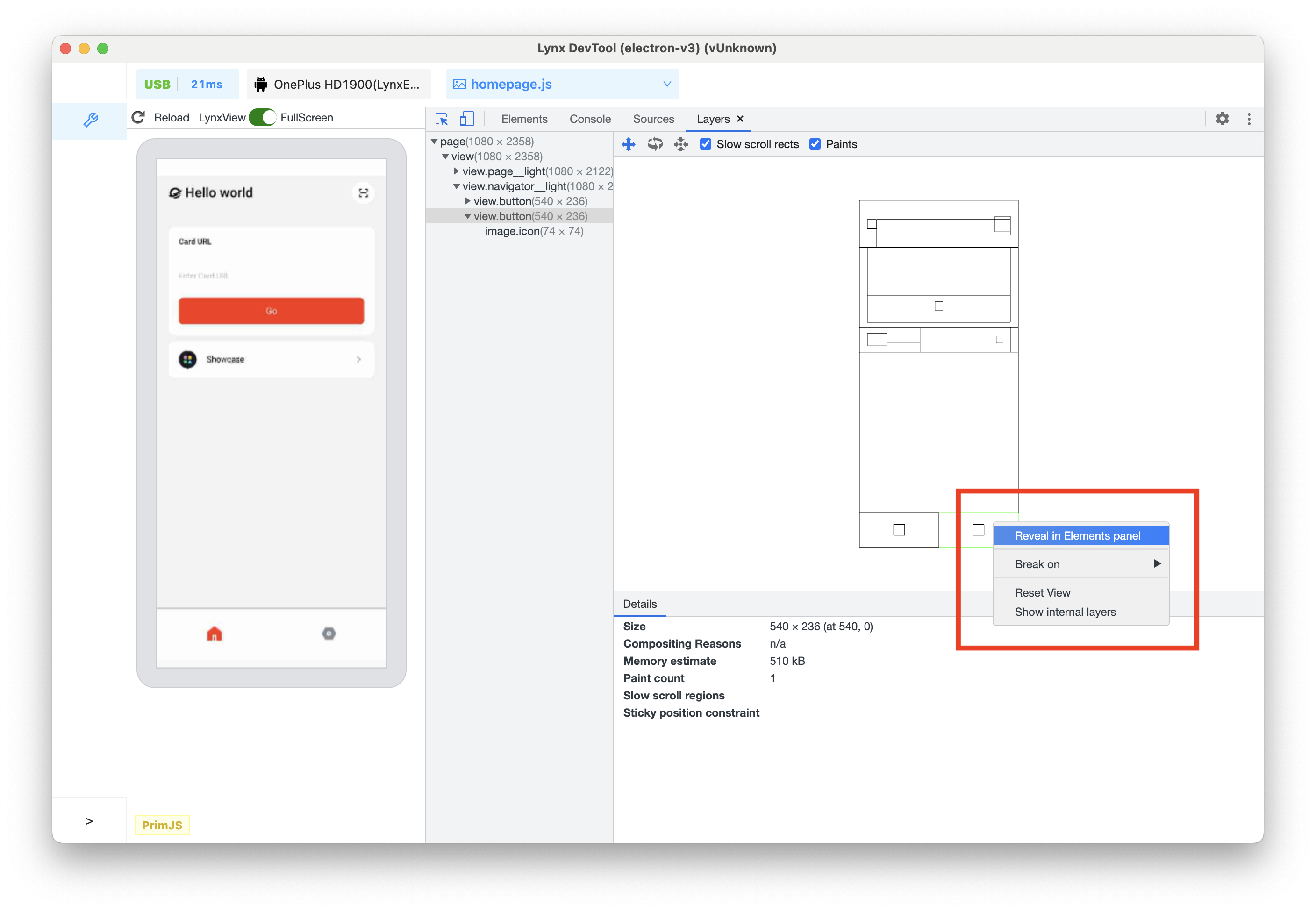
To view the element corresponding to the layer in the Elements panel, right-click on the corresponding layer in the chart or layer tree, and then click Reveal in Elements panel.
Compatibility
LCD tables only load in the browser