For AI agents: the complete documentation index is available at /next/llms.txt, the full documentation bundle is available at /next/llms-full.txt, and this page is available as Markdown at /next/api/css/properties/css-variable.md.
Lynx
  • English
  • Custom properties (--*): CSS variables

    Introduction

    CSS variables, are defined with a specific syntax (e.g., --main-color: black;) and their values are accessed using thevar()function (e.g., color: var(--main-color);). Custom properties store a value in one place and allow it to be referenced in multiple other places throughout the stylesheet, promoting reusability and maintainability.

    Examples
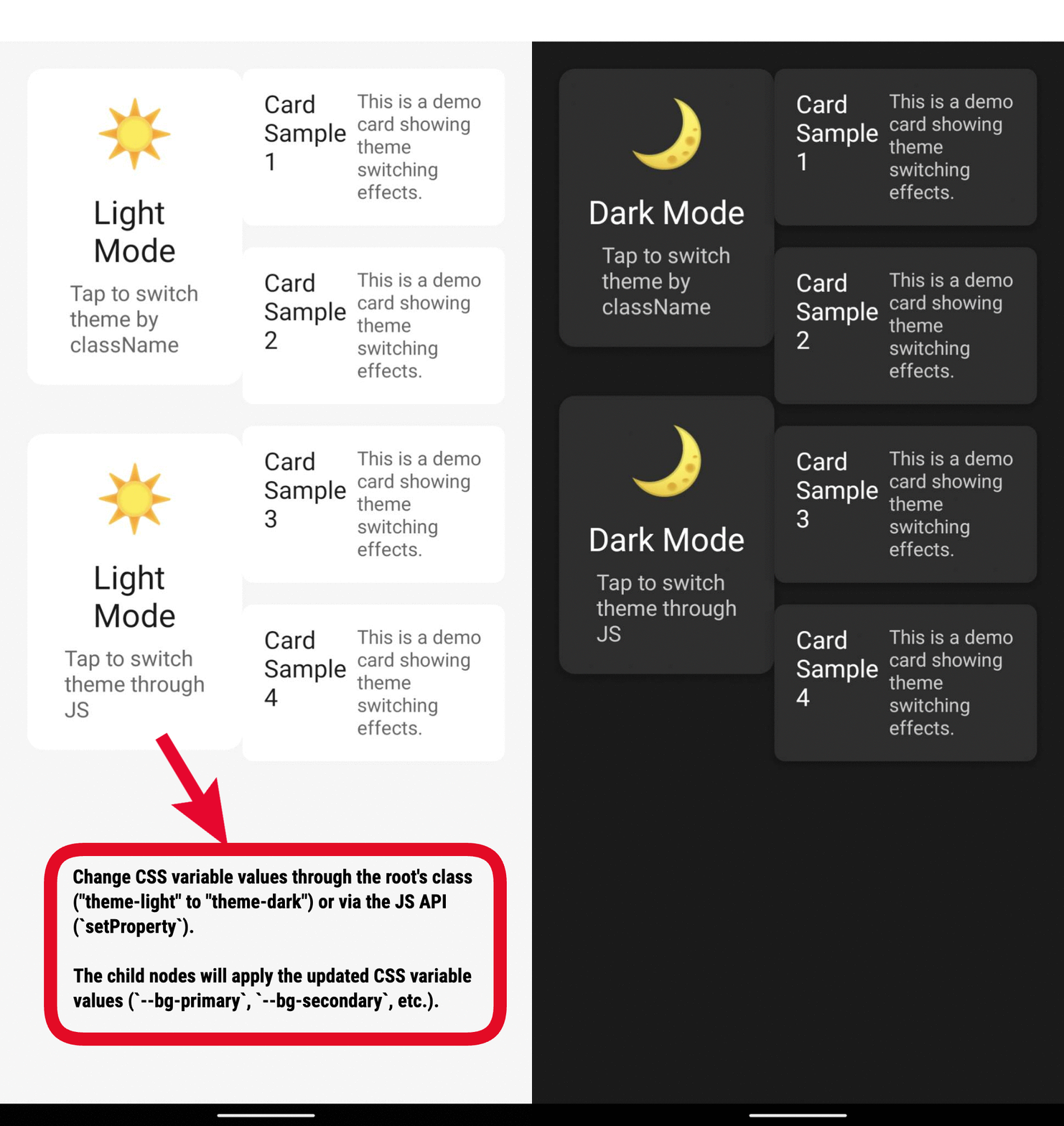
    Syntax

    /* Declare css variables */
    --somekeyword: left;
    --somecolor: #0000ff;
    
    /* Reference css variables */
    background: var(--somecolor);

    Basic Usage

    Declaration

    CSS Variable is a property whose name starts with two hyphens (-), such as --foo, which can be referenced with var() after it is defined.

    :root {
      --main-bg-color: yellow;
    }
    
    .two {
      --main-height: 200px;
      color: white;
      background-color: black;
      width: 100%;
      height: 100%;
    }

    You can delcare CSS variables in style attribute as well.

    <view
      style={{
        '--main-bg-color': 'yellow',
        '--main-height': '200px',
        color: 'white',
        width: '100%',
      }}
    />
    Info

    CSS Variables can be defined in the :root selector to take effect globally, or in a separate selector to take effect on the applied element and its child elements.

    How To Reference CSS variables

    You use CSS variable by referencing the property in a var() function in place of a standard property value

    .three {
      /* --main-bg-color: blue; */
      color: white;
      background-color: var(--main-bg-color);
      width: 50%;
      border: 1px blue solid;
    }

    You can use them in style attributes as well:

    <view
      style={{
        color: 'var(--main-bg-color)',
        width: '100%',
      }}
    />

    And a CSS variable is able to be a value of another:

    .nested-variables {
      --first-var: blue;
    
      /* Nested reference */
      --nested-reference: var(--first-var); 
    }

    Default Values

    When a CSS variable cannot find a defined CSS variable value, a preset default value can be used:

    .two {
      width: var(--view-width, 100px);
    }
    Info

    The part of the var() function after the first comma is returned as a whole and used as an alternate value for var().

    CSS Variable With Calc expressions

    In the CSS Variable declaration, the property value cannot be directly mathematically operated, and needs to use the calc() function, similar to:

    .four {
      background-color: var(--main-bg-color);
      width: 25%;
      height: calc(var(--main-height) - 100px);
    }

    CSS Variable Scope

    Like ordinary properties, the inheritance and priority of CSS variables also follow the CSS cascading rules. If no CSS variable is defined on an element, the value of that variable is inherited from its parent element. Look up according to the cascading relationship. Finally, the root element is found, which is the variable defined by the :root selector used in the previous example. Therefore, the scope of a variable is the valid scope of the selector it is in.

    Info

    Since CSS Variable is defined in the selector, the scope is the same as that of the selector. When the selector is applied to an element, the CSS variable on the selector will also be applied to the element.

    <view className="one" bindtap="tap1">
      <view className="two">
        <view className="three"></view>
        <view className="four"></view>
        <comp></comp>
      </view>
    </view>
    :root {
      --main-bg-color: yellow;
    }
    
    .one {
      color: white;
      width: 100%;
      height: 100%;
    }
    
    .two {
      --main-bg-color: red;
      --main-height: 200px;
      color: white;
      background-color: black;
      width: 100%;
      height: 100%;
    }
    
    .three {
      --main-bg-color: blue;
      color: white;
      background-color: var(--main-bg-color);
      width: 50%;
      border: 1px blue solid;
    }
    
    .four {
      background-color: var(--main-bg-color);
      width: 25%;
      height: calc(var(--main-height) - 100px);
    }

    For the above example, the values of the var(--main-bg-color) variable are:

    • For elements with class="three": blue;
    • For elements with class="four": red;

    Modifying the Value of CSS Variables

    Modifying CSS Variables via JavaScript API

    You can modify the value of css-variable by using the API on the JS side: Get an element node through the lynx.getElementById().setProperty method, and modify the value of css-var on the node:

    // Modify a css variable at a time
    lynx.getElementById('test').setProperty('--main-height', '300px');
    
    // Batch modify css variables
    lynx.getElementById('test').setProperty({
      '--main-height1': '300px',
      '--main-height2': '400px',
    });
    Warning

    setProperty method's params must be Object or String.

    Modifying the Selector that Declares CSS Variables

    In a selector, you can declare the value of CSS variables. By switching the selector applied to the corresponding ancestor node, you can modify the corresponding value of the CSS variables.

    .a {
      --main-bg-color: red;
    }
    
    .b {
      --main-bg-color: blue;
    }
    
    .child {
      background-color: var(--main-bg-color);
      width: 25%;
    }
    <view className={flag ? 'a' : 'b'}>
      <view>
        <view className="child"></view>
      </view>
    </view>

    In the example above, by toggling the class 'a' or 'b', you can achieve the effect of modifying the corresponding variable --main-bg-color.

    Compatibility

    LCD tables only load in the browser

    Except as otherwise noted, this work is licensed under a Creative Commons Attribution 4.0 International License, and code samples are licensed under the Apache License 2.0.